

Before Alexa
Set up your sensor in the app.
Already see your sensor’s current readings in Terrestream? Go to step 2.
- Download Terrestream for iPhone or Android.
- Open the app and tap Create account, or sign in if you already have an account. Follow the email verification prompts.
- In the app, tap Add device. On your sensor, choose Setup & Connect → Set up with the app.
- Allow Bluetooth, select your sensor, and enter its six-digit pairing code if asked. Follow the app to connect to your 2.4 GHz Wi-Fi.
- Name your sensor Main Bedroom, or choose your own room name. Keep cloud sharing enabled and check that current readings appear in the app.
Prefer to set up on a computer?
Use Chrome or Edge on a Bluetooth-equipped computer. On the sensor, choose Setup & Connect → Set up with the app. Sign in at app.terrestream.com, choose Add device → Find my device, then finish Bluetooth pairing and Wi-Fi setup.
Continue to Alexa once your sensor’s current readings appear in the Terrestream app.
Alexa app
Enable Terrestream.
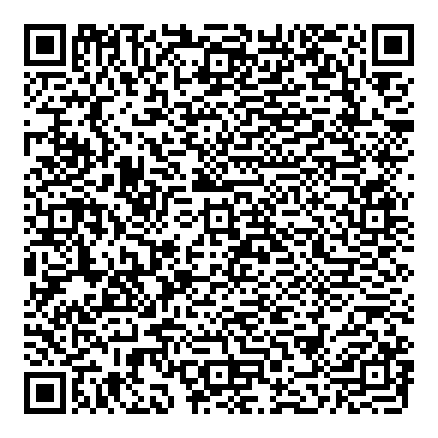
- Scan the QR code above, or tap Open Alexa on your phone.
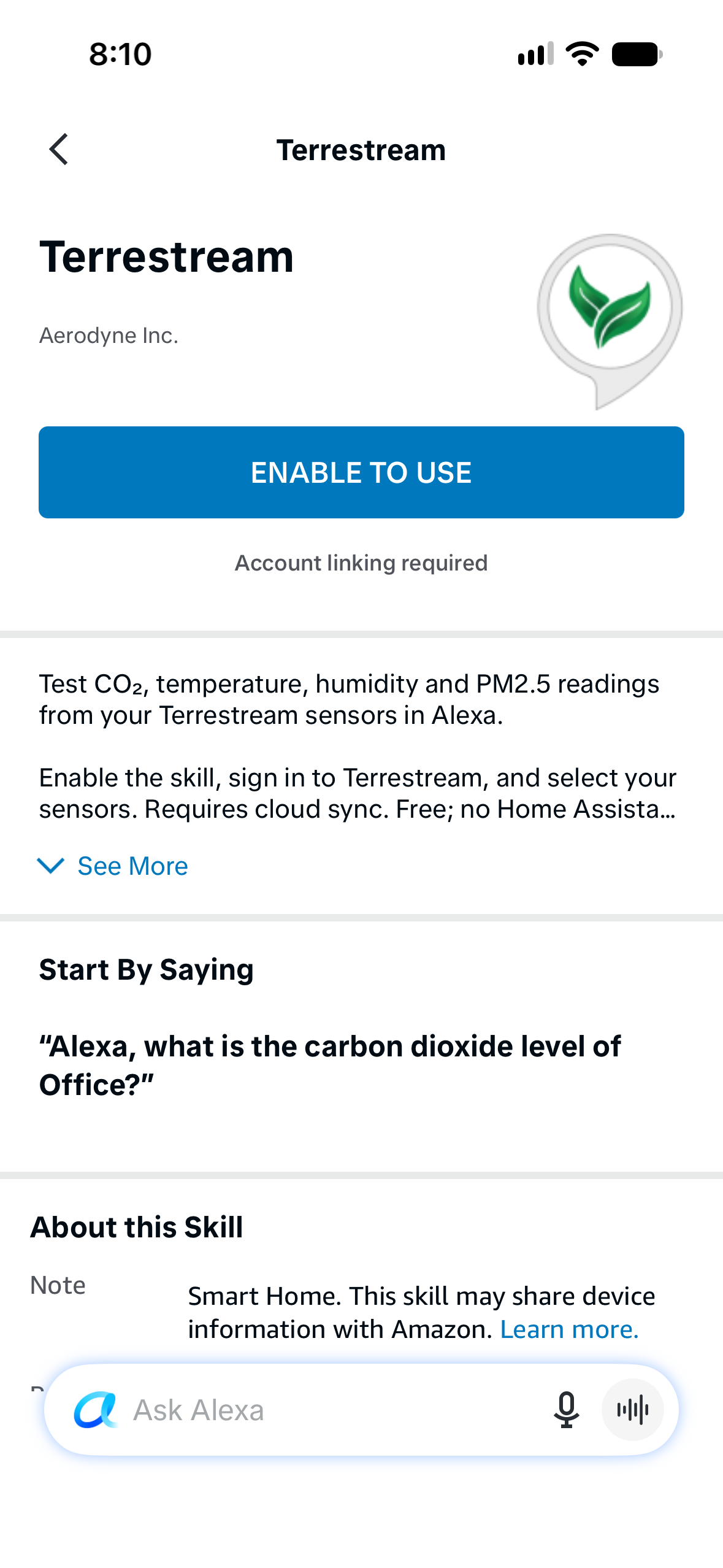
- On the Terrestream skill page, tap Enable to Use.
- Continue through any permission prompts Alexa shows.
The QR code opens the skill directly, so you don’t need to find it in Alexa’s menus.
Terrestream sign-in
Choose what Alexa can read.
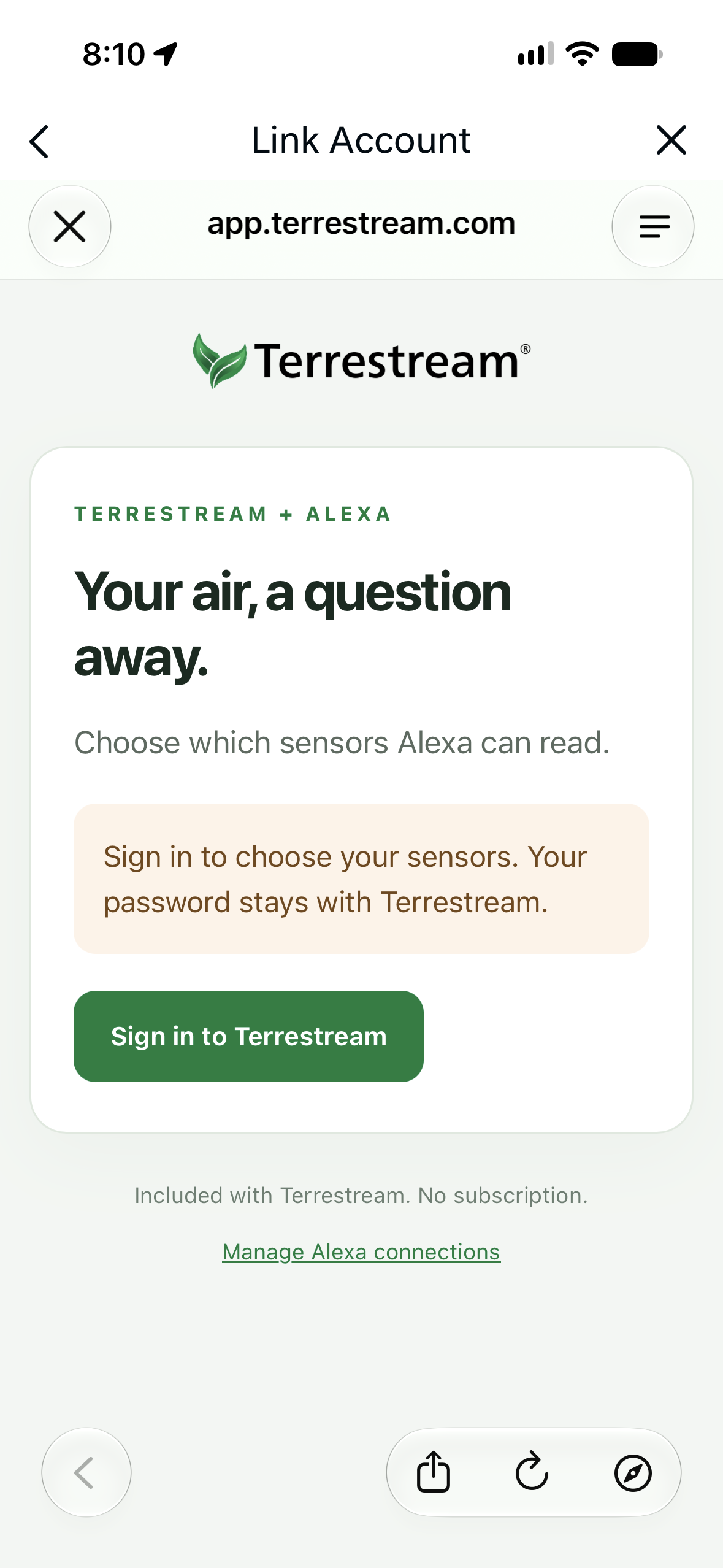
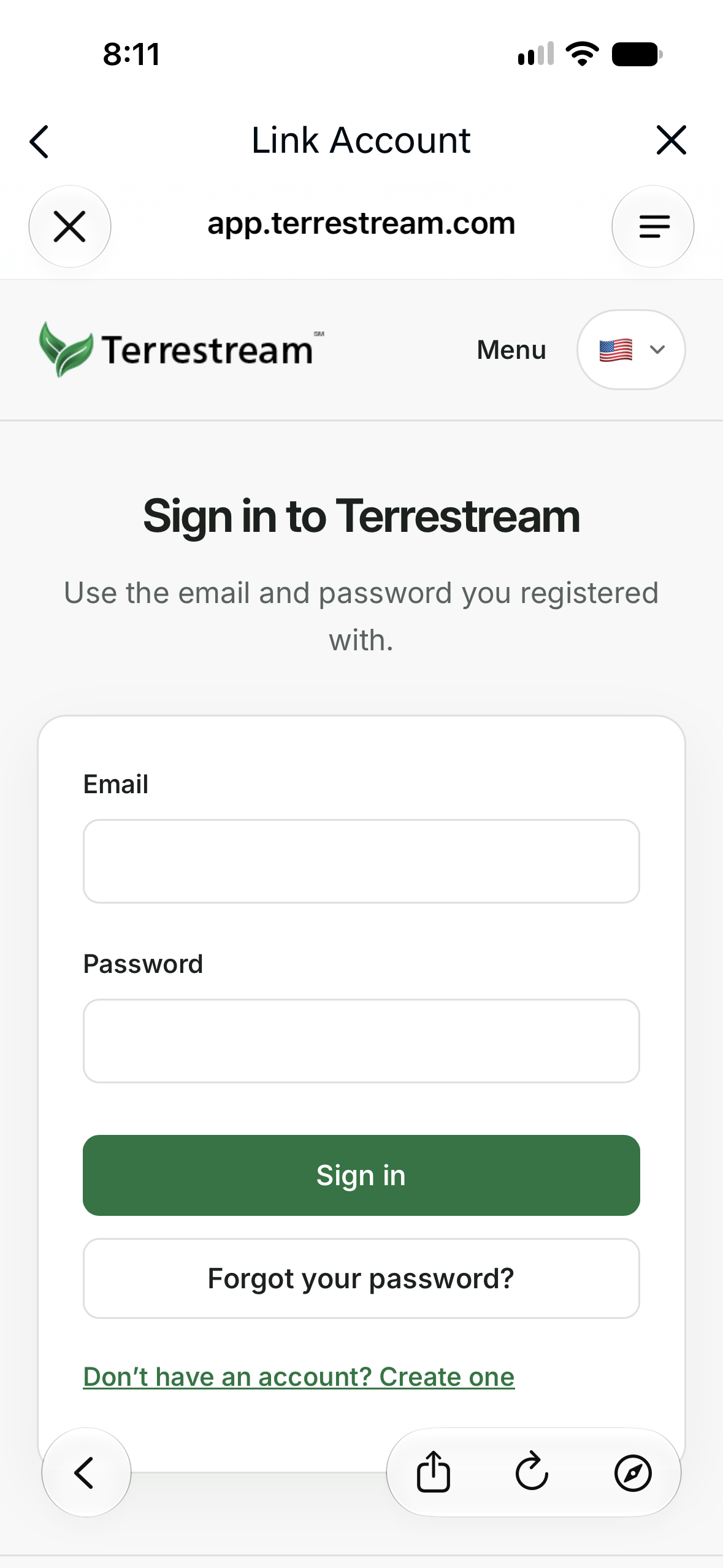
- Tap Sign in to Terrestream. Use the account you added your sensor to.
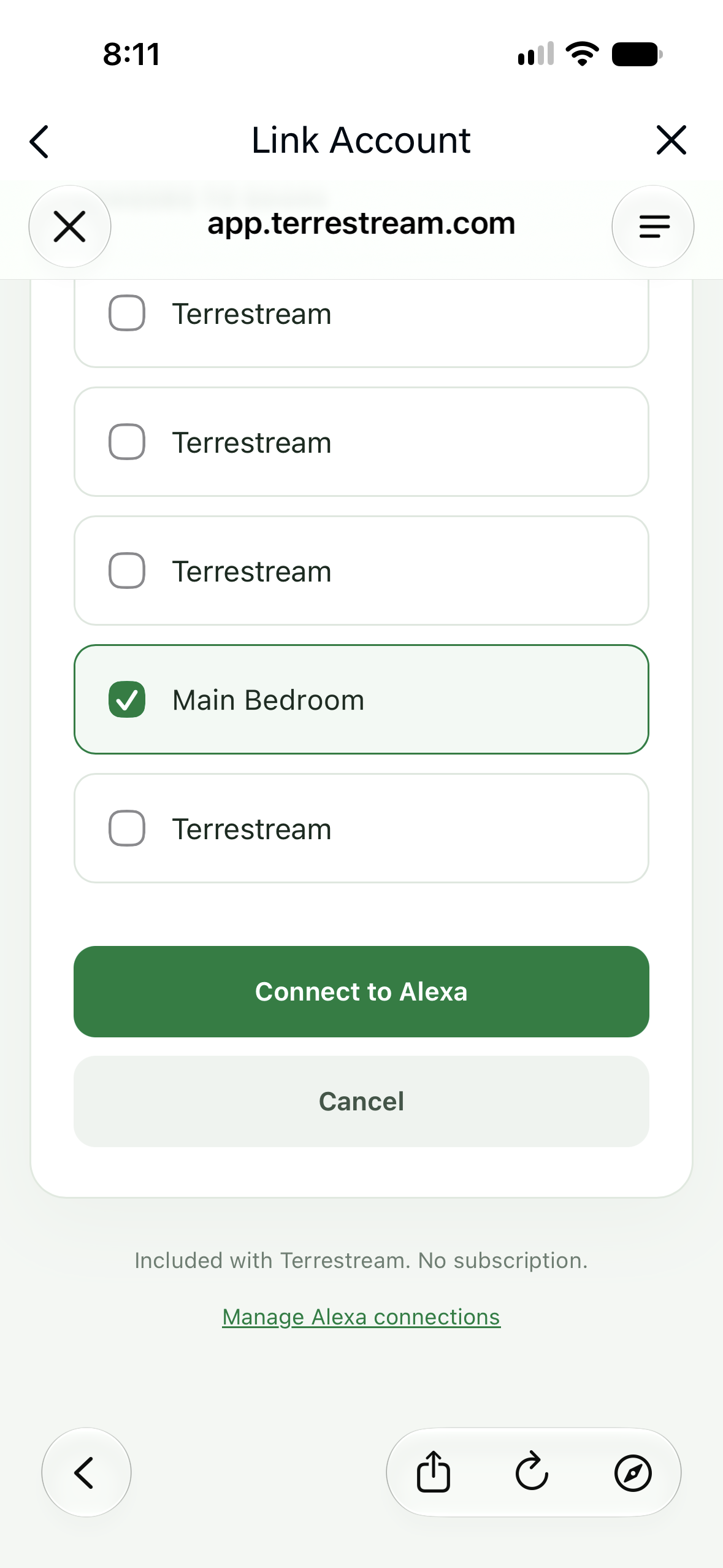
- Select the sensor or sensors you want to share, then tap Connect to Alexa.
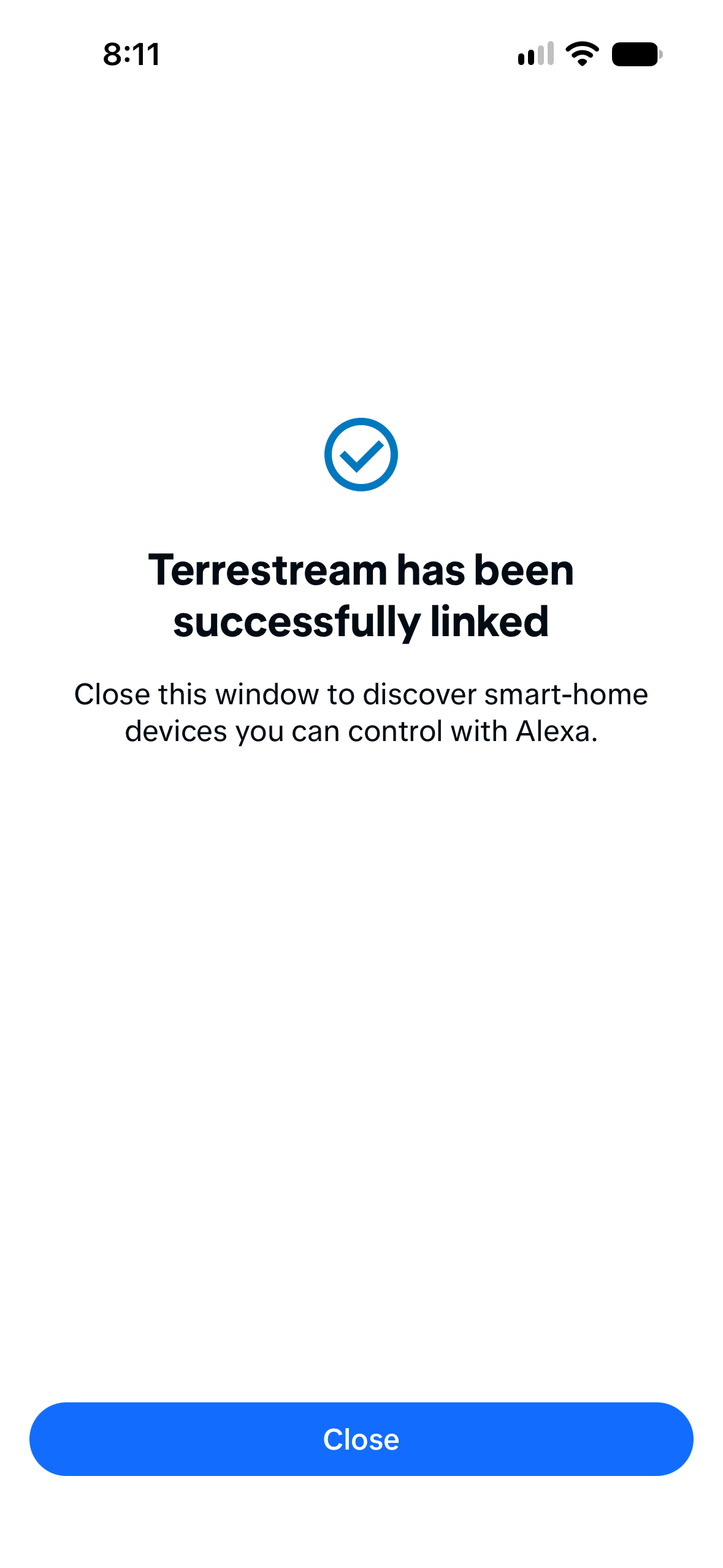
- When Alexa confirms the link, tap Close.
If you’re already signed in, you may go straight to the sensor list.
You choose what to share. Read the Alexa privacy notice. People near your Echo may be able to ask for shared readings.
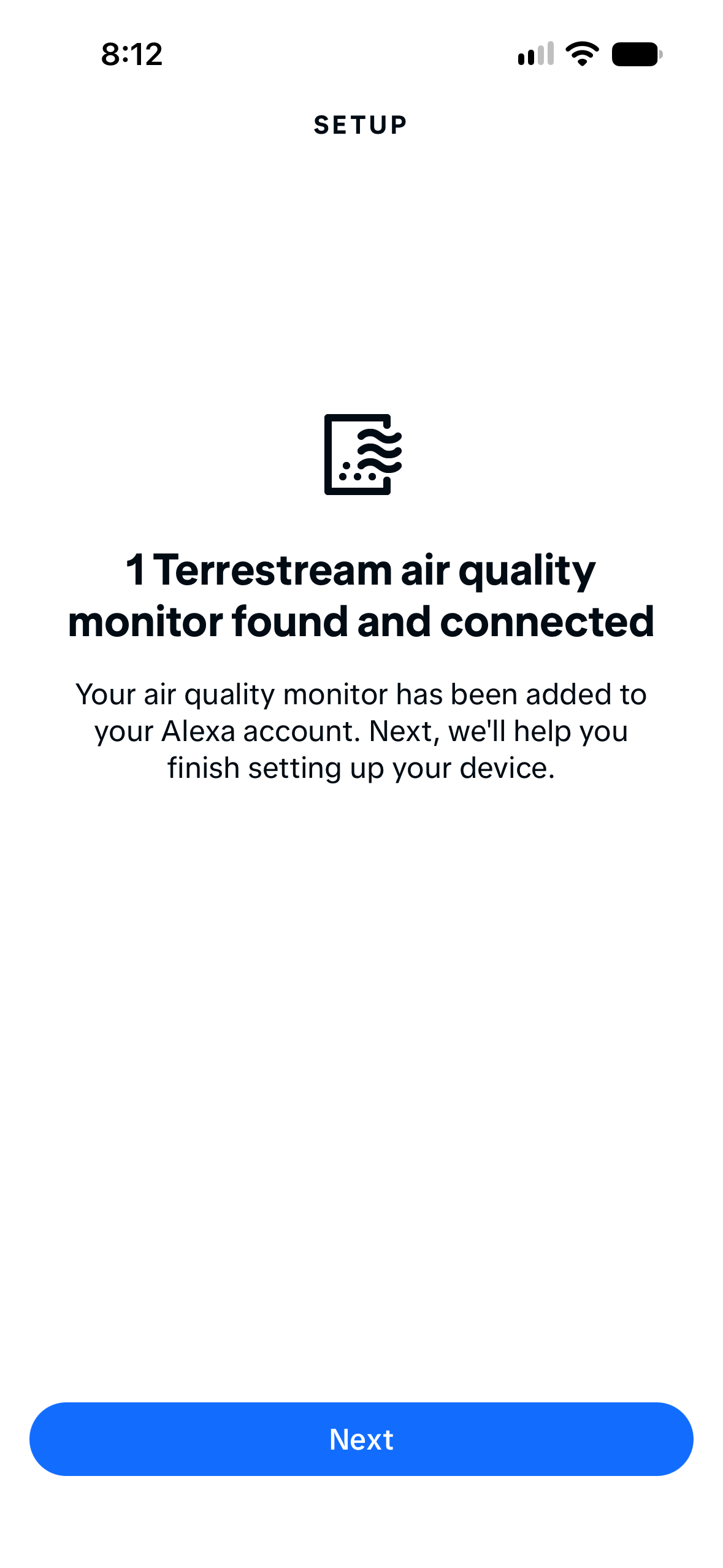
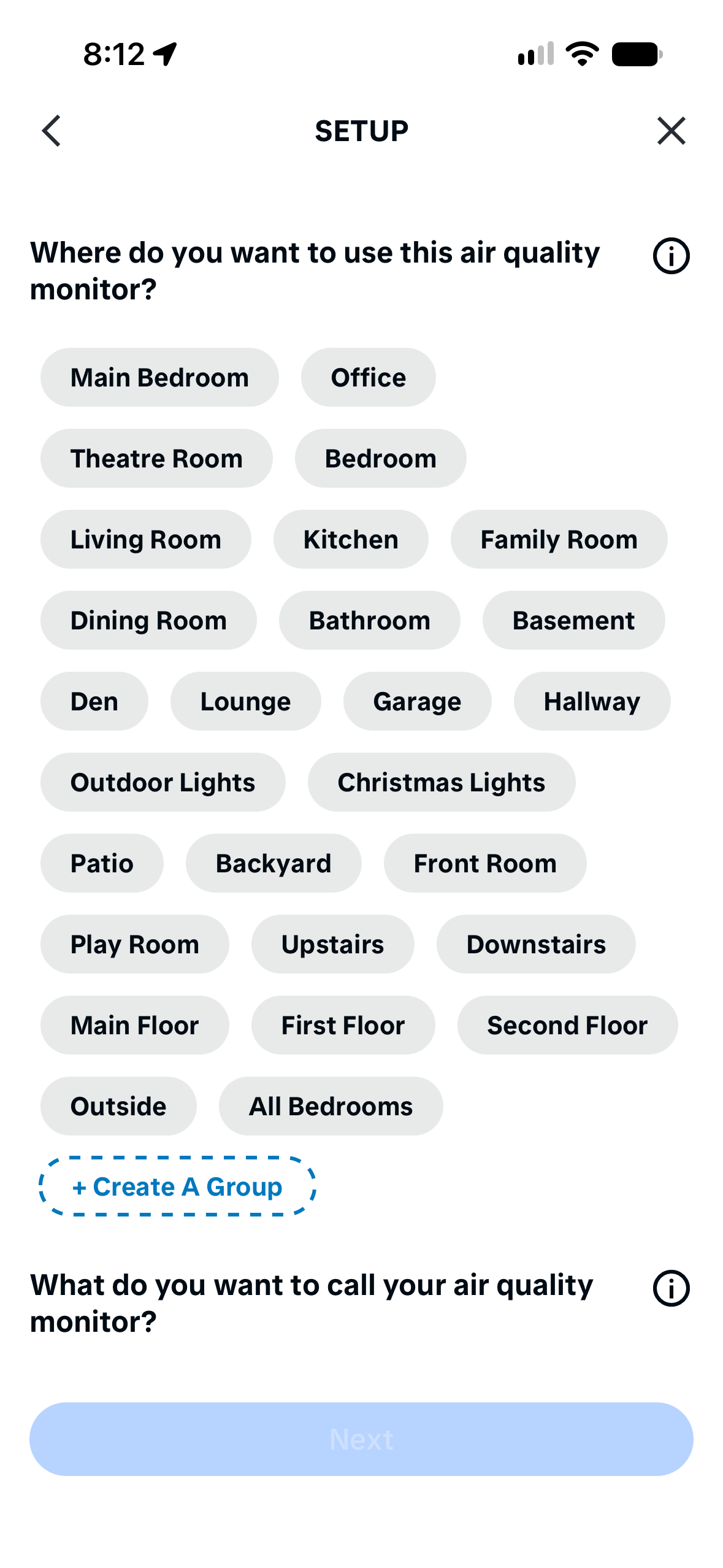
Tap a screenshot to enlarge it. On a phone, swipe to see the next screen.
Alexa discovery
Finish setup in Alexa.
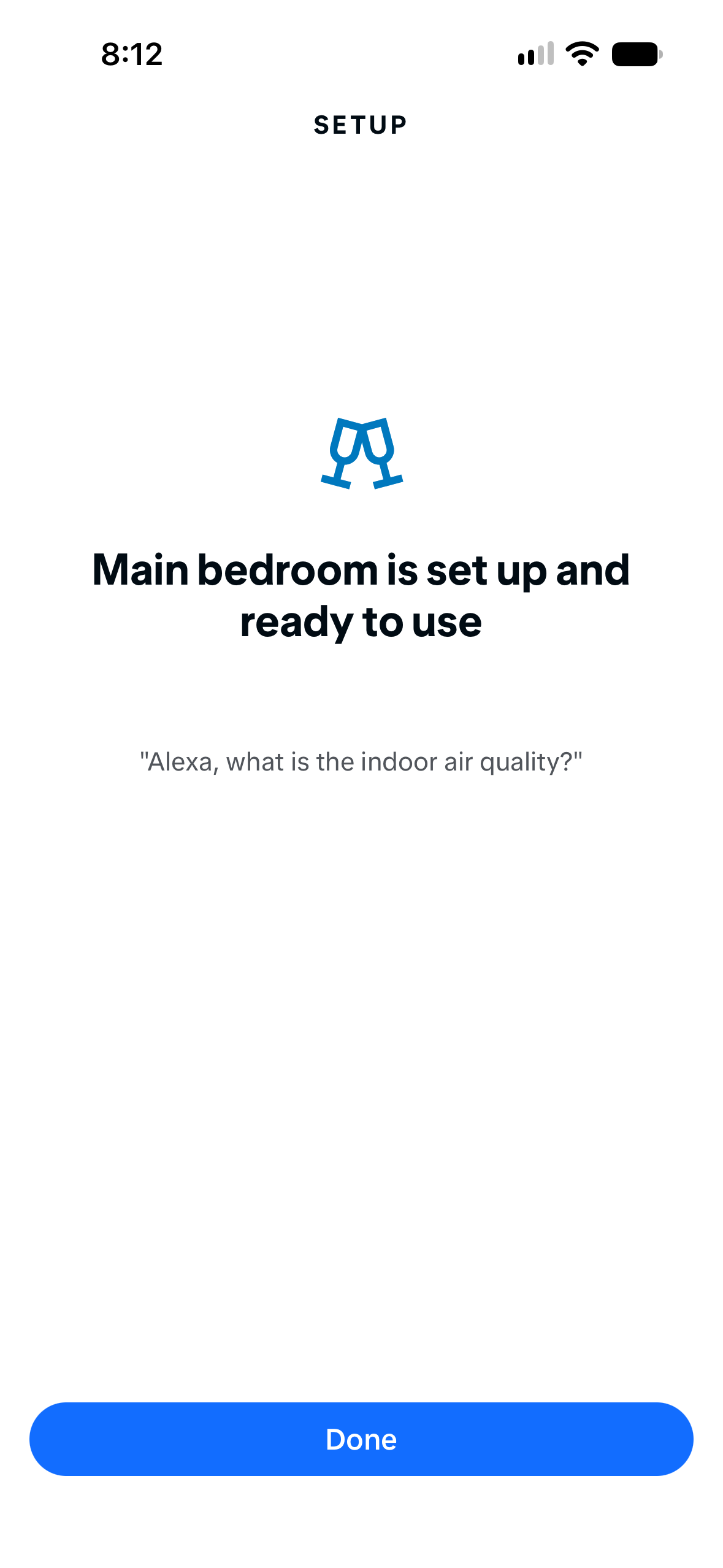
- Let Alexa find your sensor. When it says the monitor is connected, tap Next.
- Choose a room or group and a name for the monitor.
- Complete the prompts and tap Done.
Your first check
Check your readings.
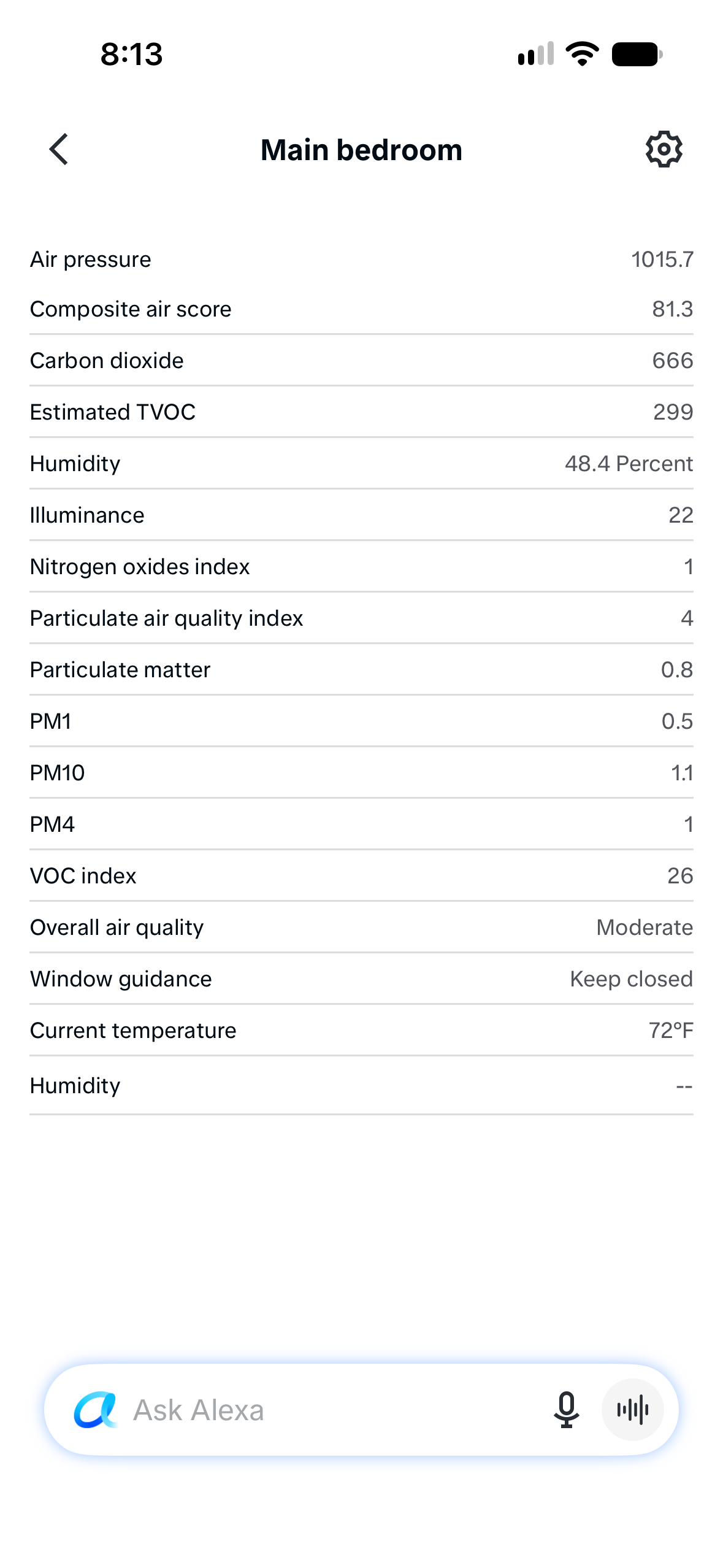
Open Devices in Alexa and select your monitor. Check its current readings and window guidance.
Then ask, using your monitor’s Alexa name:
“Alexa, what is the carbon dioxide level of Main bedroom?”
“Alexa, what is the temperature of Main bedroom?”
Your readings will differ from these screenshots. Temperature units follow your Terrestream preferences.
Optional routine
Create a window reminder.
- In Alexa, open More → Routines → +.
- Tap Add an event → Smart Home, then choose your Terrestream monitor.
- Select Terrestream announcements → Opening windows may help, then tap Next.
- Under Alexa Will, add a spoken action. For example, announce: “Opening a window might help air quality.” Choose the Echo device or devices that should speak.
- Tap Save or Finish. Your routine will appear under Your Routines.
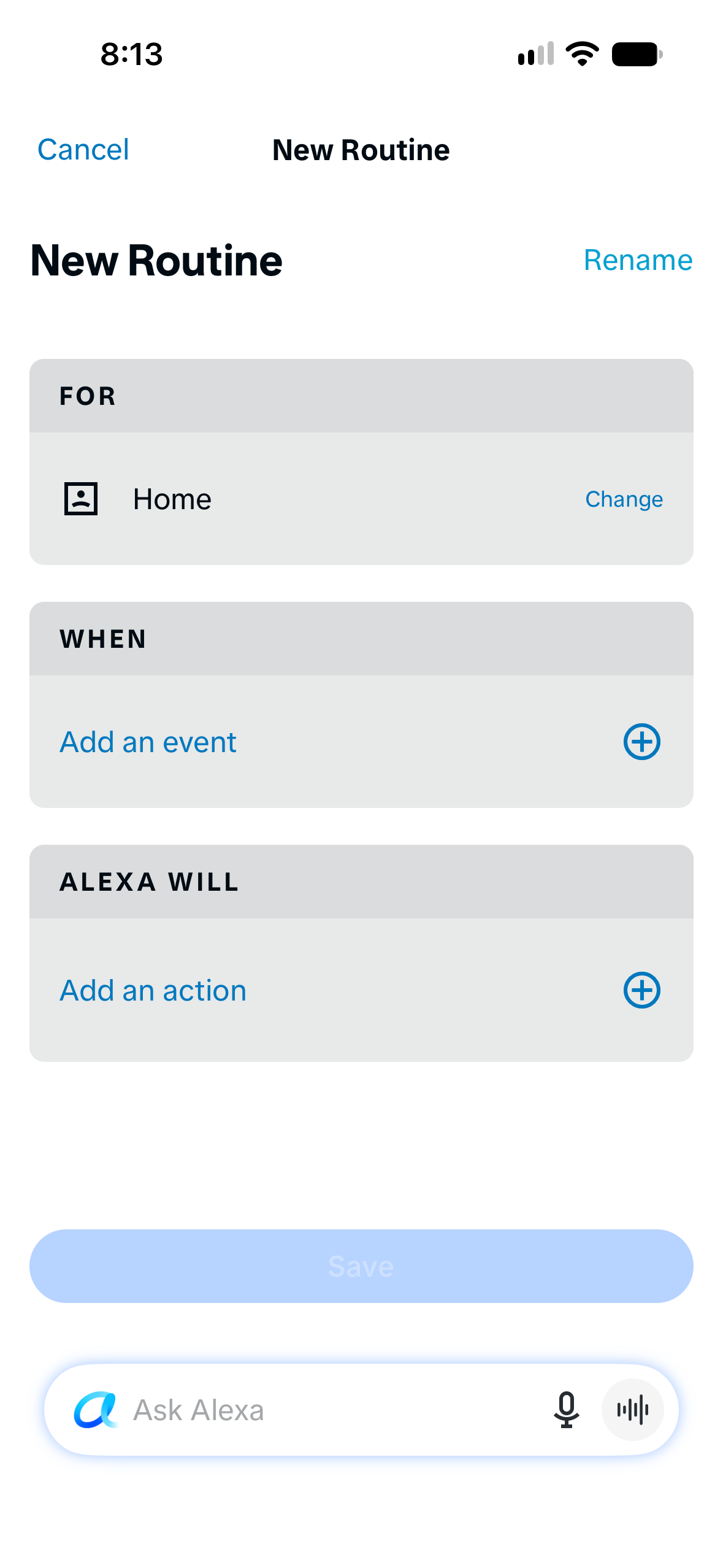
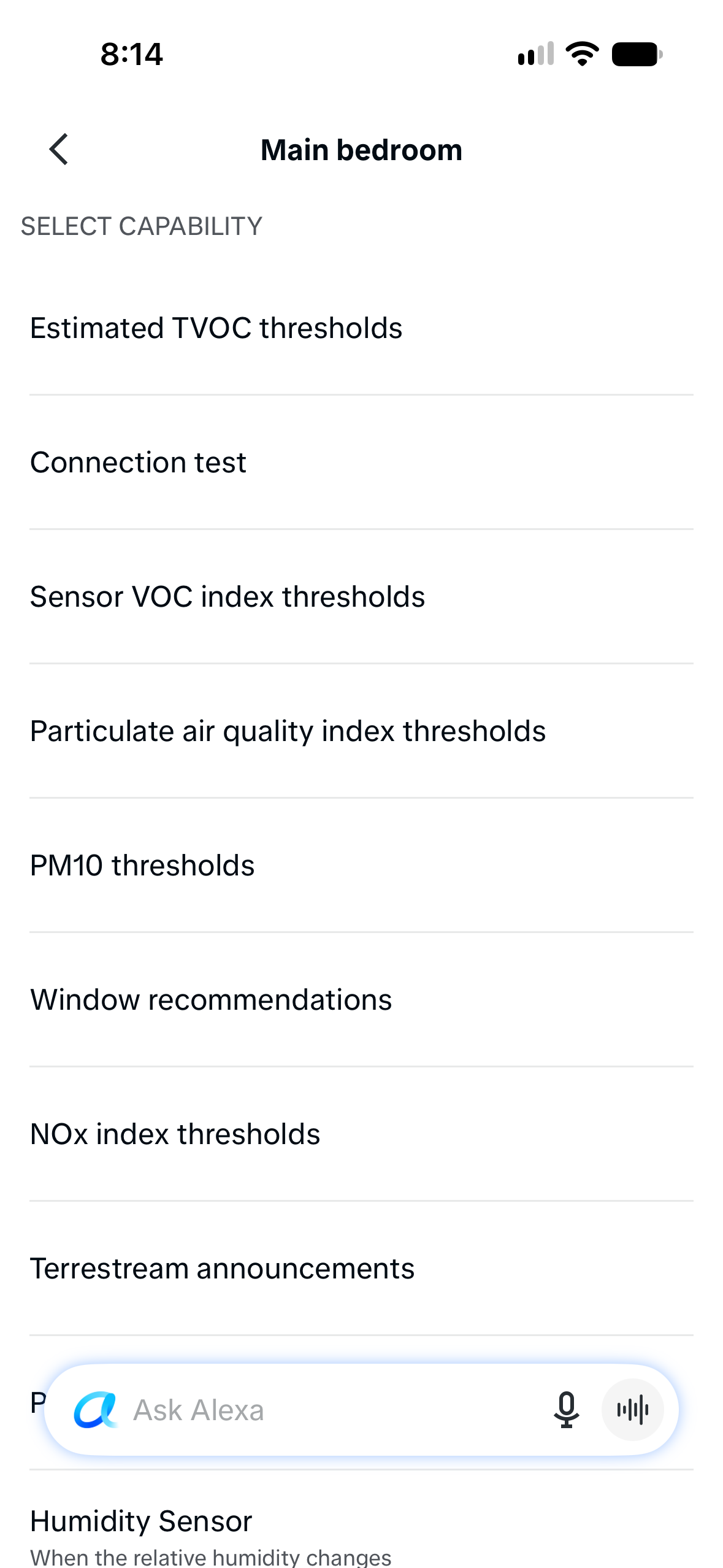
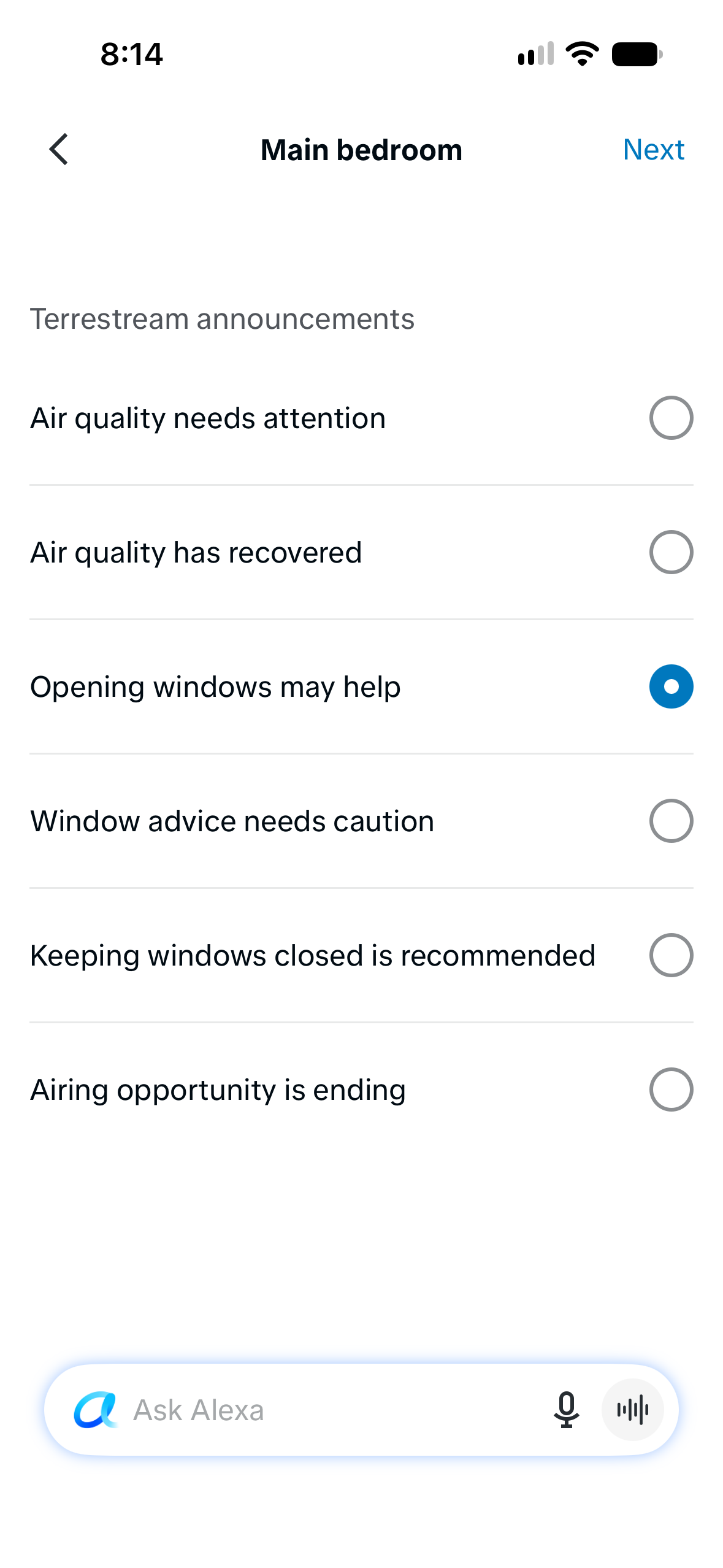
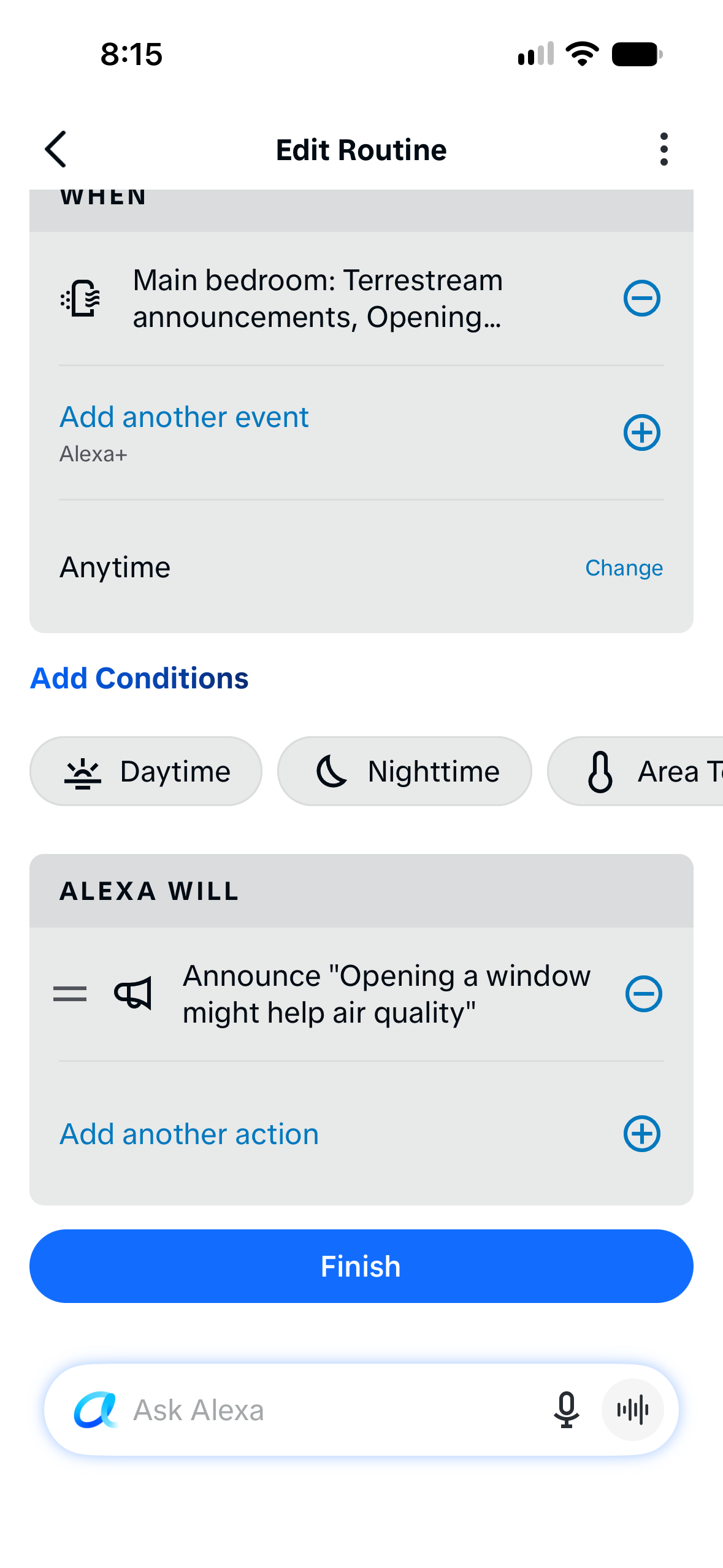
Routines respond to changes, so this reminder may not speak immediately. For an immediate check, use the Connection test recipe below.
Window recommendations need a saved home location and outdoor-data permission in Terrestream. Recommendations may be unavailable when the supporting data is missing or out of date.
Terrestream provides environmental information, not medical advice or emergency alerts. Keep using smoke and carbon monoxide alarms. Do not use these routines for safety-critical equipment.
Your Terrestream account
Manage your Alexa connection.
Open your Alexa manager on any phone or computer.
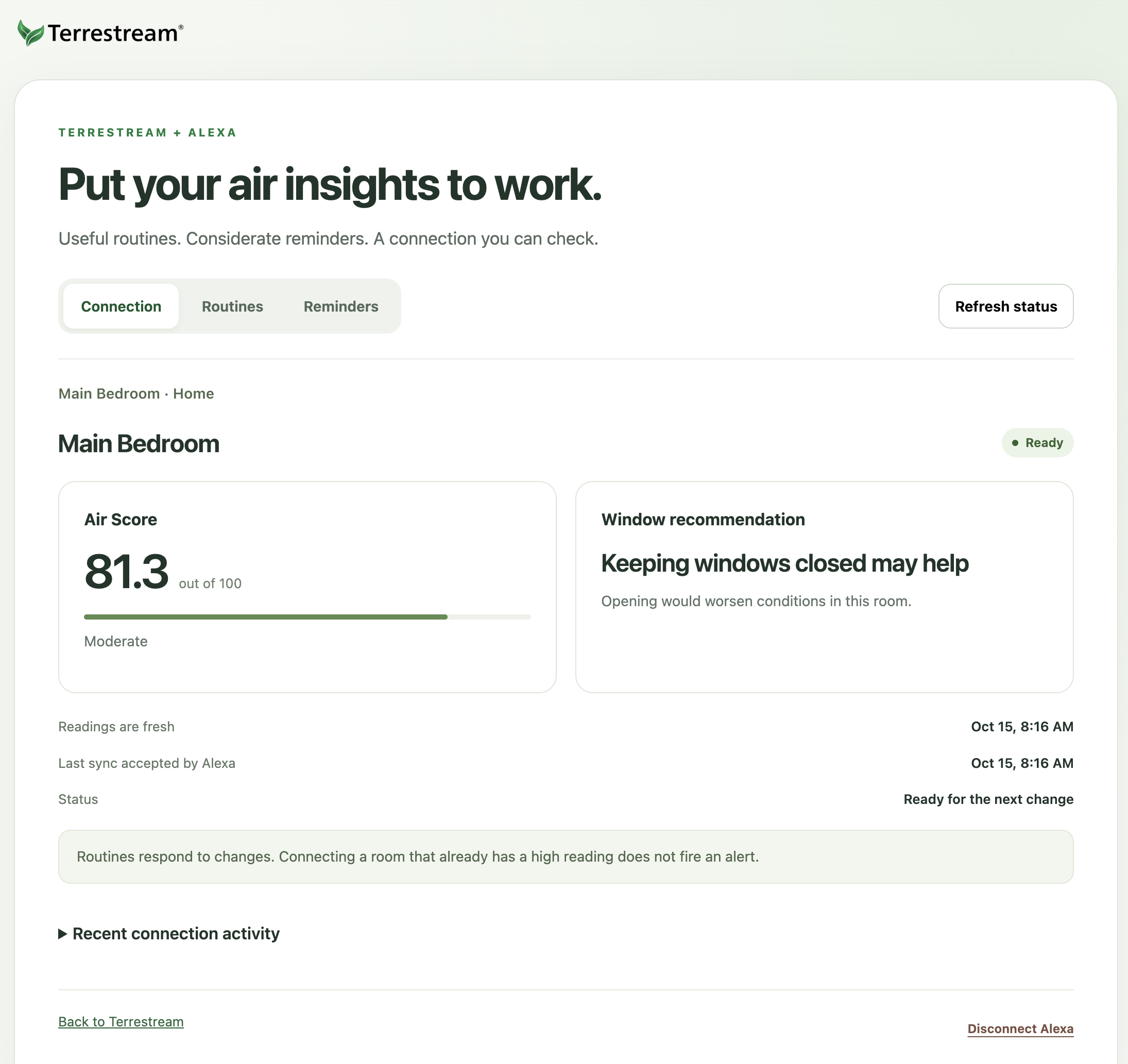
Connection
Check for Ready, fresh readings and the latest sync accepted by Alexa.
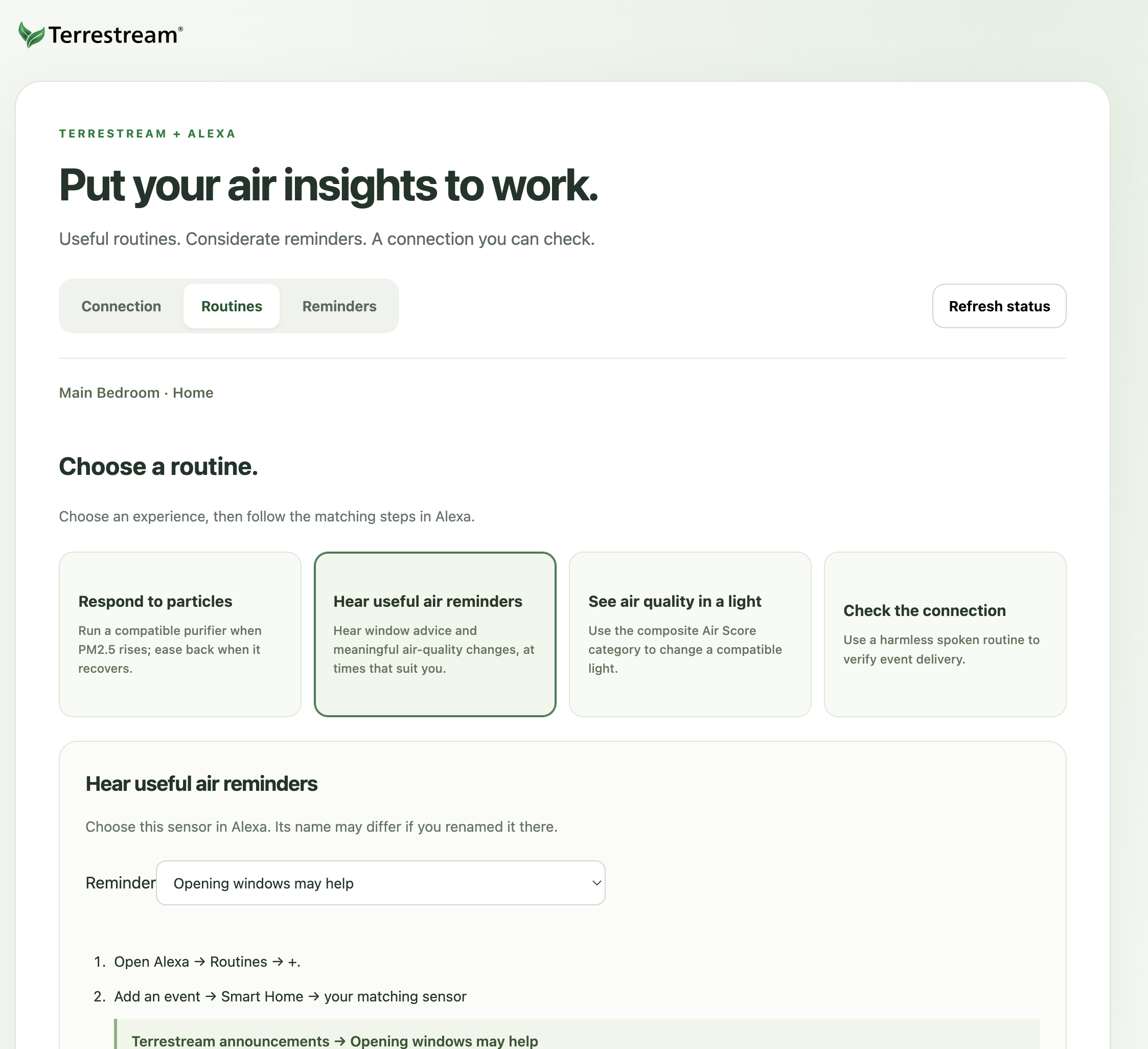
Routines
Choose a guided recipe. For a quick test, open Check the connection, save its matching routine in Alexa, then send one test event.
Reminders
Your quiet hours and timezone are filled in automatically. Open Customize for Alexa only if you want different settings.
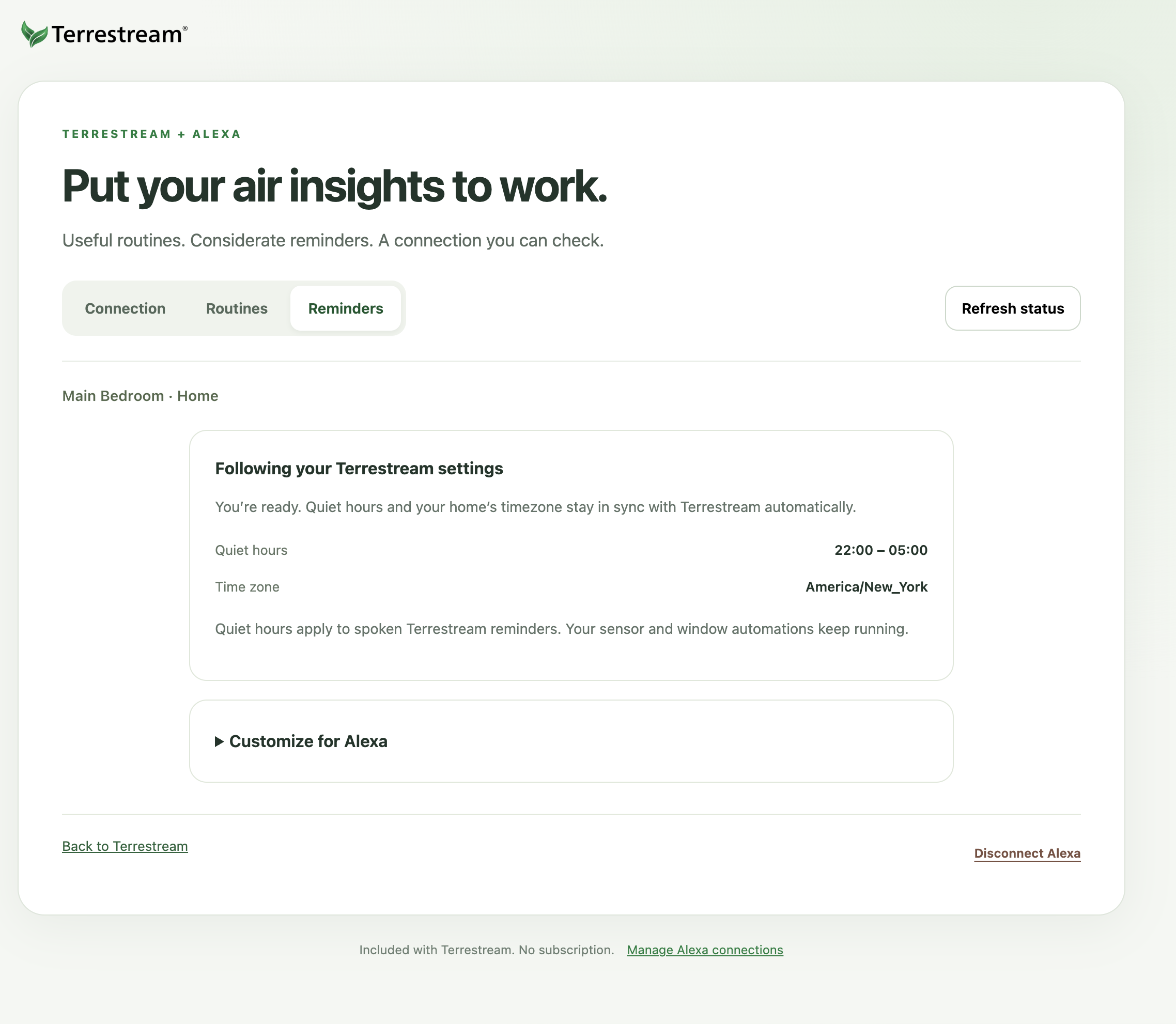
Quiet hours and Rest Mode apply to Terrestream announcements. Measurement and window automation triggers keep working. Alexa’s acceptance confirms delivery; hearing the test confirms your chosen speaker and action worked.
Quick answers
Troubleshooting
The QR code or skill page won’t open.
Install the Alexa app, sign in to the Amazon account that received your beta invitation, and accept that invitation. Scan the QR code with your phone’s Camera and choose Open in Alexa. On the same phone, use the Open Alexa button.
My sensor isn’t in the sharing list.
Sign in to the Terrestream account that owns the sensor. Finish Add device and confirm that current readings appear in the app or dashboard. Keep cloud sharing enabled. Device setup help →
Terrestream says linking isn’t available for my account.
Verify your email and sign in to the Terrestream account that owns your sensor. If linking is still unavailable, contact support.
My device or routine triggers are missing in Alexa.
Say “Alexa, discover my devices.” Then close and reopen the Alexa app. Check the connection in your Alexa manager.
Why does View Dashboard only show Temperature?
Alexa’s native history view currently shows Temperature. Use the Terrestream app or web dashboard for your full measurement history. The colored Alexa air-quality header is also unavailable.
Can I ask Terrestream for spoken window advice?
Custom spoken advice is not included in this release. Check Window guidance on the device page or create a window recommendation routine.
How do I disconnect?
In your Alexa manager, choose Disconnect Alexa. On the Terrestream skill page in Alexa, choose Disable Skill. Disable or delete any Alexa routines you no longer need. Disconnecting stops future Terrestream sharing but does not erase data already held by Amazon.
Contact support
Send us the step you reached and a screenshot of what you see.
Screenshots show Alexa+ on iPhone, October 2026. Labels may vary by app version. Tap a screenshot to enlarge it.