

Before you start
What you need
- A Terrestream connected to 2.4 GHz home Wi-Fi.
- A device running Home Assistant OS, left powered on. The Home Assistant phone app alone is not enough.
- A Matter-compatible Echo and the Alexa app, using the same Amazon account.
- Your phone, Echo and Home Assistant on the same home network. Avoid guest Wi-Fi.
Use sensor firmware 4.1.0 or later with Home Assistant support, Home Assistant 2026.9.3 or later, and Terrestream Local 0.1.2 or a newer release listed in the release notes.
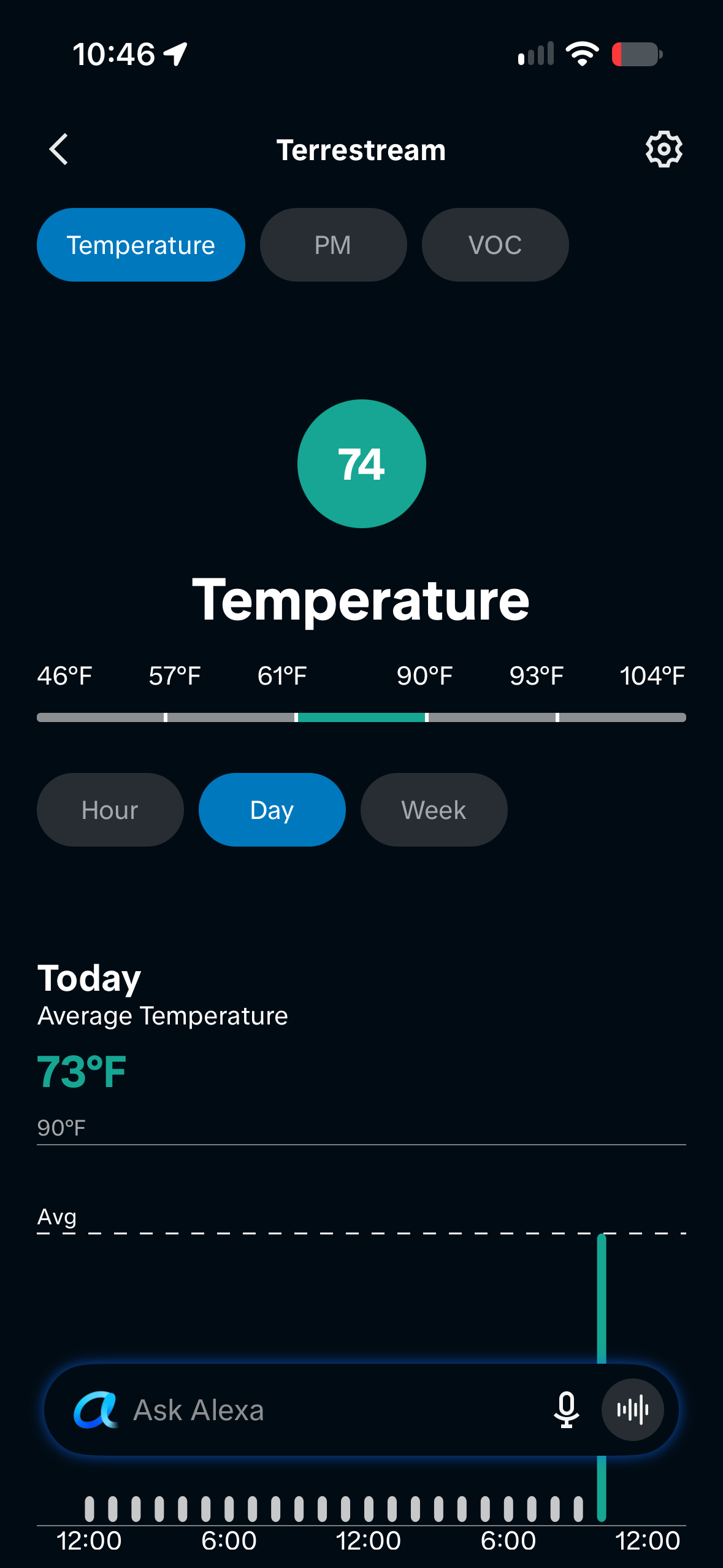
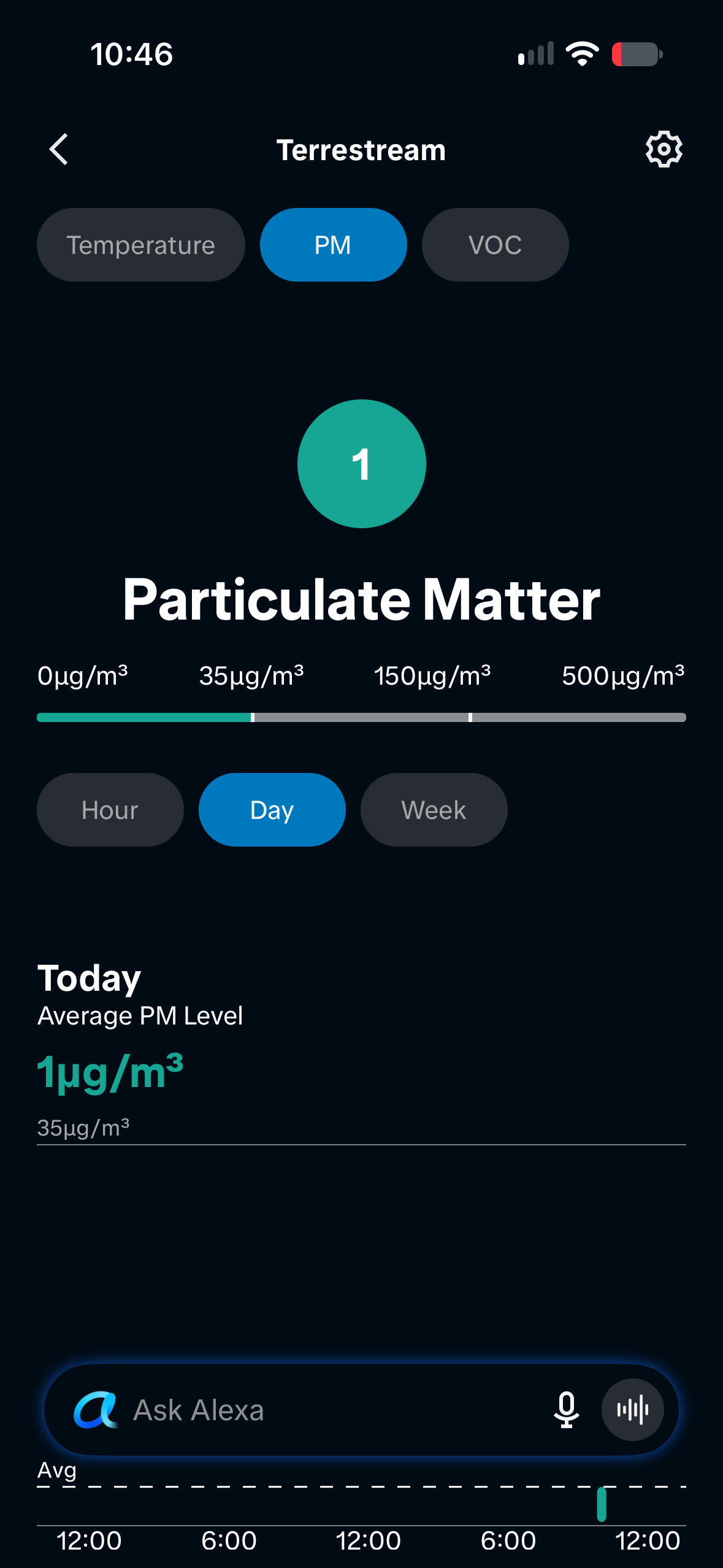
Terrestream reports 12 measurements. Alexa shows only air quality, PM2.5, temperature and humidity. This is an Alexa limitation; all 12 measurements remain available in Home Assistant.
Use Matterbridge for this connection. Home Assistant’s built-in Matter integration cannot share these readings with Alexa. No Nabu Casa subscription or Terrestream Alexa skill is needed.
Step 1 · Terrestream app
Connect your Terrestream.
Skip to step 2 if your Terrestream is already online.
- Install the Terrestream app for iPhone or Android, then sign in or create an account.
- On the sensor, open Setup & Connect → Set up with the app. In the app, tap Add device and allow Bluetooth access.
- Select your sensor. Enter its six-digit Bluetooth code if prompted, then connect it to your 2.4 GHz Wi-Fi.
- Check that readings appear in the app and install any available firmware update.
Full Terrestream setup instructions → For setup without a Terrestream account, use the sensor’s local Wi-Fi setup.
Leave Cloud data sharing → Cloud enabled to keep receiving readings in the Terrestream app and web dashboard.
Step 2 · Always-on host
Install Home Assistant.
We recommend Home Assistant OS. It comes installed on Home Assistant Green, or you can install it on supported hardware or a virtual machine.
- Follow the installation instructions for your hardware.
- Connect it to your home network, open Home Assistant in a browser, and create your owner account.
- Open the dashboard to check that setup is complete. Keep this device powered on.
Using Home Assistant Container?
Follow HACS’s Container instructions and install Matterbridge separately. Container does not include the OS app installer used below. Give Matterbridge persistent storage, access to Home Assistant, and a network connection that supports Matter discovery.
Installation reference: Home Assistant
Step 3 · Home Assistant
Install HACS and Terrestream Local.
Use HACS, the Home Assistant Community Store, to install Terrestream Local from our GitHub repository.
Install HACS on Home Assistant OS
- Open Settings → Apps → Install app. In the three-dot menu, choose Repositories and add the HACS app repository below. Older versions call Apps “Add-ons.”
https://github.com/hacs/addons- Install and start Get HACS. Follow its logs and restart Home Assistant when instructed.
- Open Settings → Devices & services → Add integration and select HACS.
- Sign in to GitHub when HACS prompts you, then return to Home Assistant to finish setup.
HACS download instructions · Initial configuration
Add the Terrestream repository
- Open HACS → three-dot menu → Custom repositories.
- Paste the repository below, select type Integration, then choose Add.
https://github.com/terrestream/terrestream- Search HACS for Terrestream Local, open it and choose Download. Select the published integration release, then restart Home Assistant.
Select v0.1.2 or a newer integration release. Skip client-v releases; Home Assistant installs that component automatically.

Step 4 · Sensor + Home Assistant
Pair your sensor with Home Assistant.
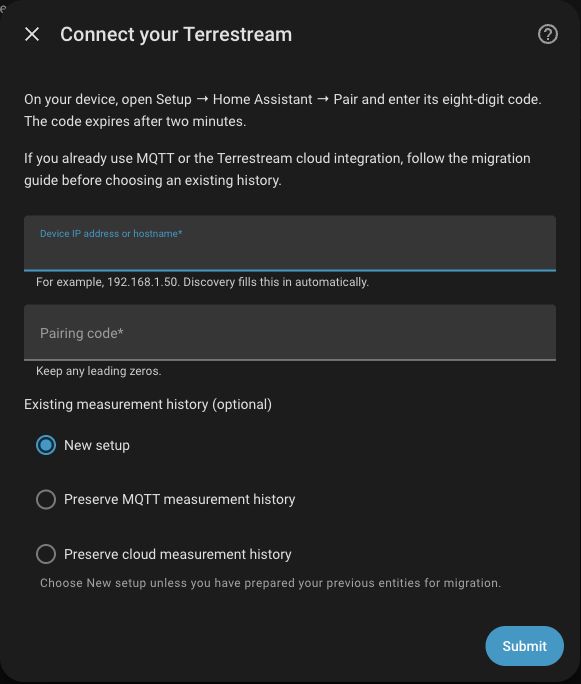
- On Terrestream, open Setup → Home Assistant → Pair.
- In Home Assistant, open Settings → Devices & services and select Terrestream. If it is missing, choose Add integration → Terrestream Local and enter the sensor’s IP address or hostname.
- Enter the eight-digit Home Assistant code, including any leading zeros. The code expires after two minutes.
- Leave Existing measurement history → New setup selected. Submit, then choose a name and area.
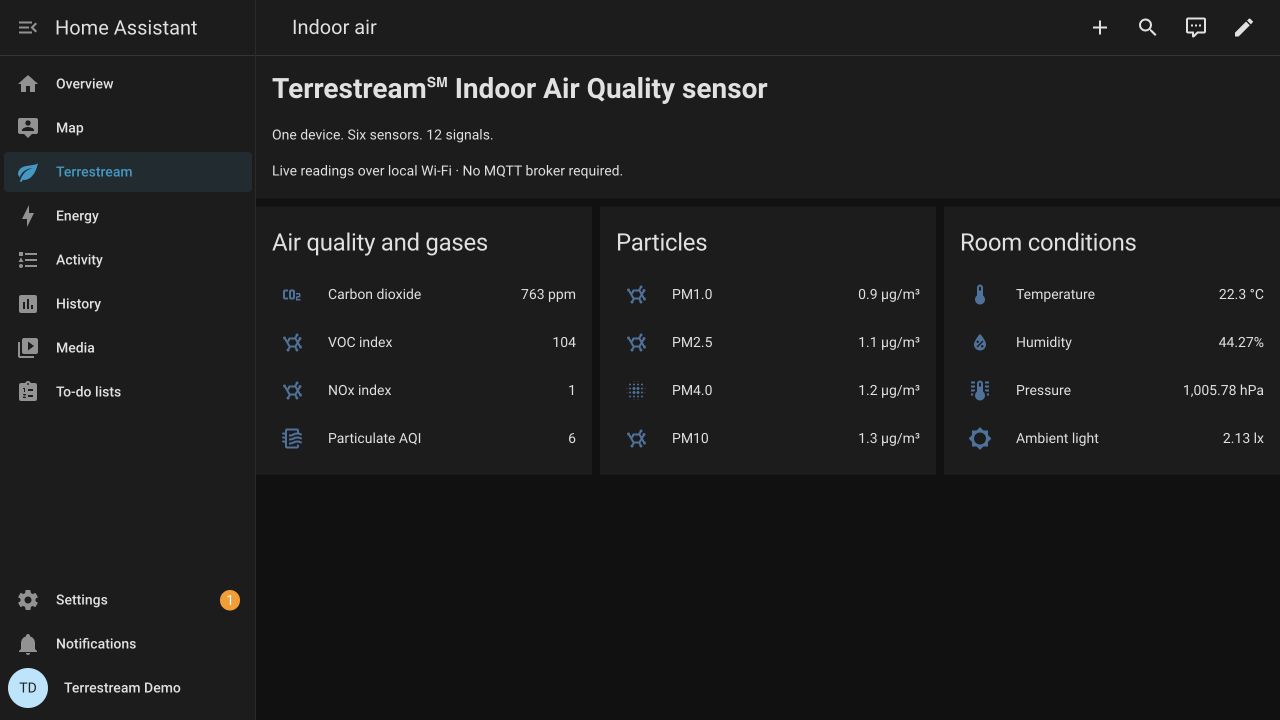
- Open the device and check its readings. Allow sensor warm-up or cleaning to finish if needed.
Step 5 · Home Assistant + Matterbridge
Set up Matterbridge
1. Install the app
In Home Assistant, open Settings → Apps → Install app. Choose three-dot menu → Repositories and add:
https://github.com/Luligu/matterbridge-home-assistant-addonInstall Matterbridge, enable Start on boot and Show in sidebar, then start and open it.
2. Connect Home Assistant
In Matterbridge, install matterbridge-hass and open its settings. Fill in these two fields:
| Field | What to enter |
|---|---|
| Host | Your Home Assistant address, such as ws://homeassistant.local:8123. Use wss:// for HTTPS. |
| Token | In your Home Assistant profile, open Security → Long-Lived Access Tokens. Create a token and paste it here. |
Keep the token private. Use Home Assistant’s network address rather than localhost.
3. Select Terrestream
Use these settings in the plugin:
| Setting | Selection |
|---|---|
| Whitelist | Your Terrestream |
| Exported domain | sensor |
| Controller strategy | Merge |
| Split entities | Off |
| Device Entity Blacklist | Exclude controls, unrelated entities, and the numeric AQI, VOC and NOx indices. |
Keep PM2.5, temperature and humidity. Add the air-quality helper below. CO₂ can remain selected, but Alexa does not support it.
Add the air-quality helper
This helper converts Terrestream’s particulate AQI to a Matter air-quality category. It summarizes particulate levels, not all 12 measurements. Matter’s category names differ from EPA labels.
- Find your Computed EPA particulate AQI entity ID in Home Assistant.
- Open Settings → Devices & services → Helpers → Create helper → Template → Sensor.
- Name it Terrestream IAQ classification. Paste the state template and availability template, replacing the source entity placeholder in both. Associate it with Terrestream. Leave units and numeric device class blank.
- Set the plugin’s Air Quality Regex to this helper’s entity ID. For
sensor.terrestream_iaq_classification, enter^sensor\.terrestream_iaq_classification$. Export this helper in place of the numeric AQI.
In Matterbridge’s settings, set Matter mDNS interface to your Home Assistant host’s LAN adapter and the port to 5540. Find the adapter under Home Assistant → Settings → System → Network.
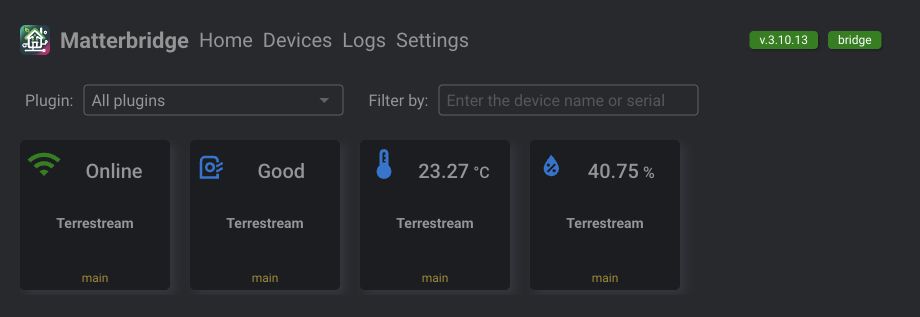
Save and restart Matterbridge. Open its Devices page and check that Terrestream’s readings update.
Step 6 · Alexa app
Finish setup in Alexa
Scan the Matterbridge QR code.
Open Matterbridge’s pairing screen on your computer so the code is ready to scan.
- Scan the code. In Alexa, open Devices → + → Add Device and choose Matter. Follow the prompts, tap Scan QR Code, and scan the Matterbridge QR code.
- Finish device setup. Tap View Devices when Alexa finds Terrestream. Open Terrestream and tap Finish Setting it Up.
- Choose a room. Assign Terrestream to its room, such as Office or Kitchen, then check its readings.
Some app versions list Matter under Other. If you cannot scan, enter Matterbridge’s numeric setup code. The bridge may first appear as Matter Hub.
Select an image to enlarge.
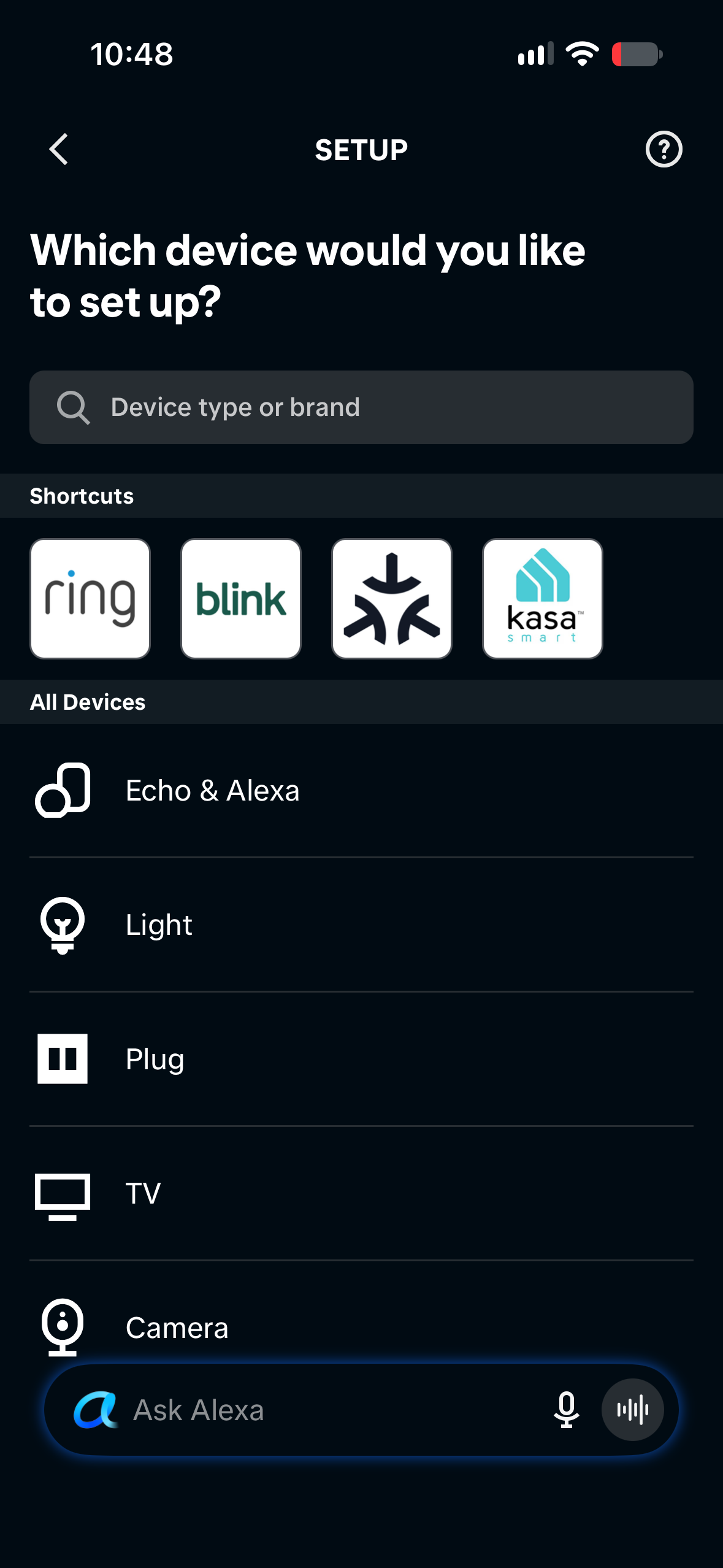
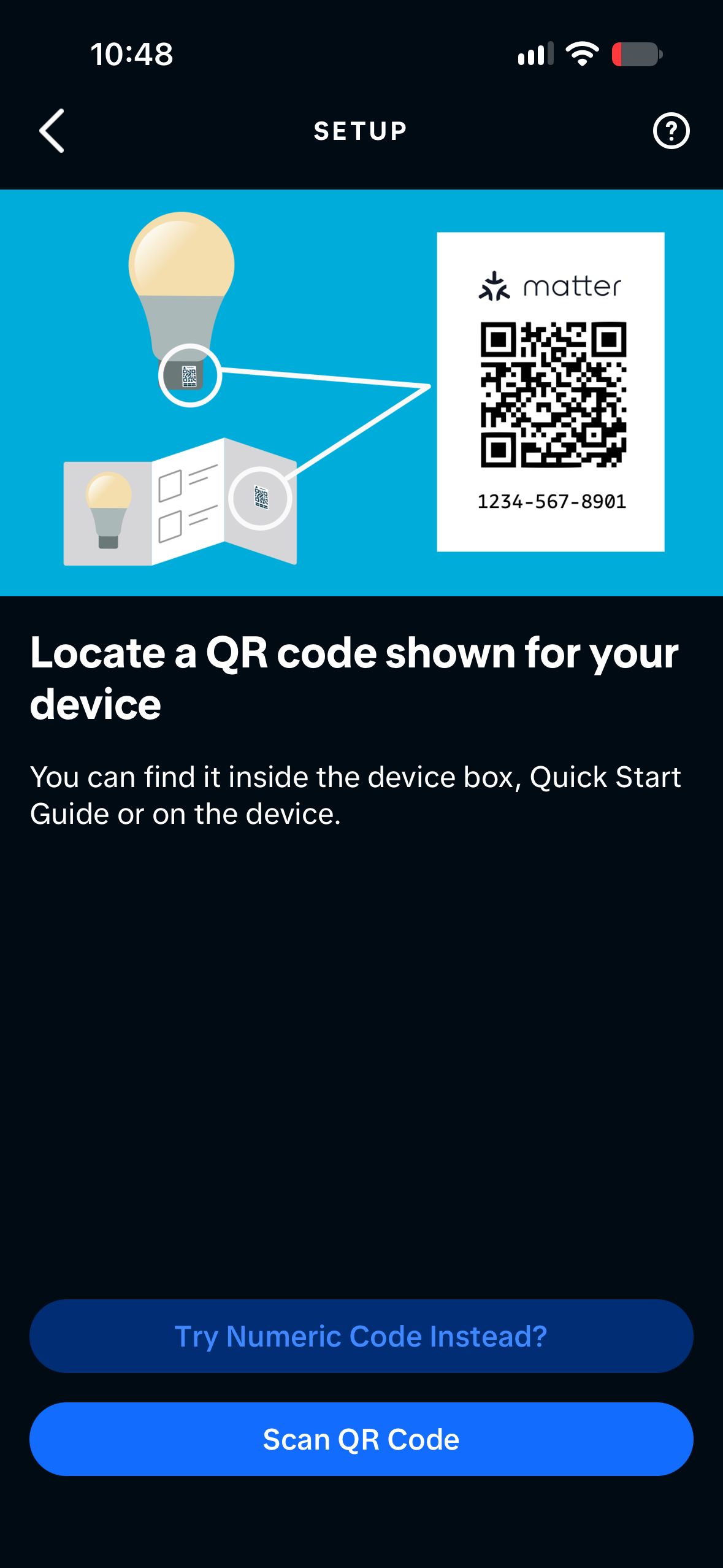
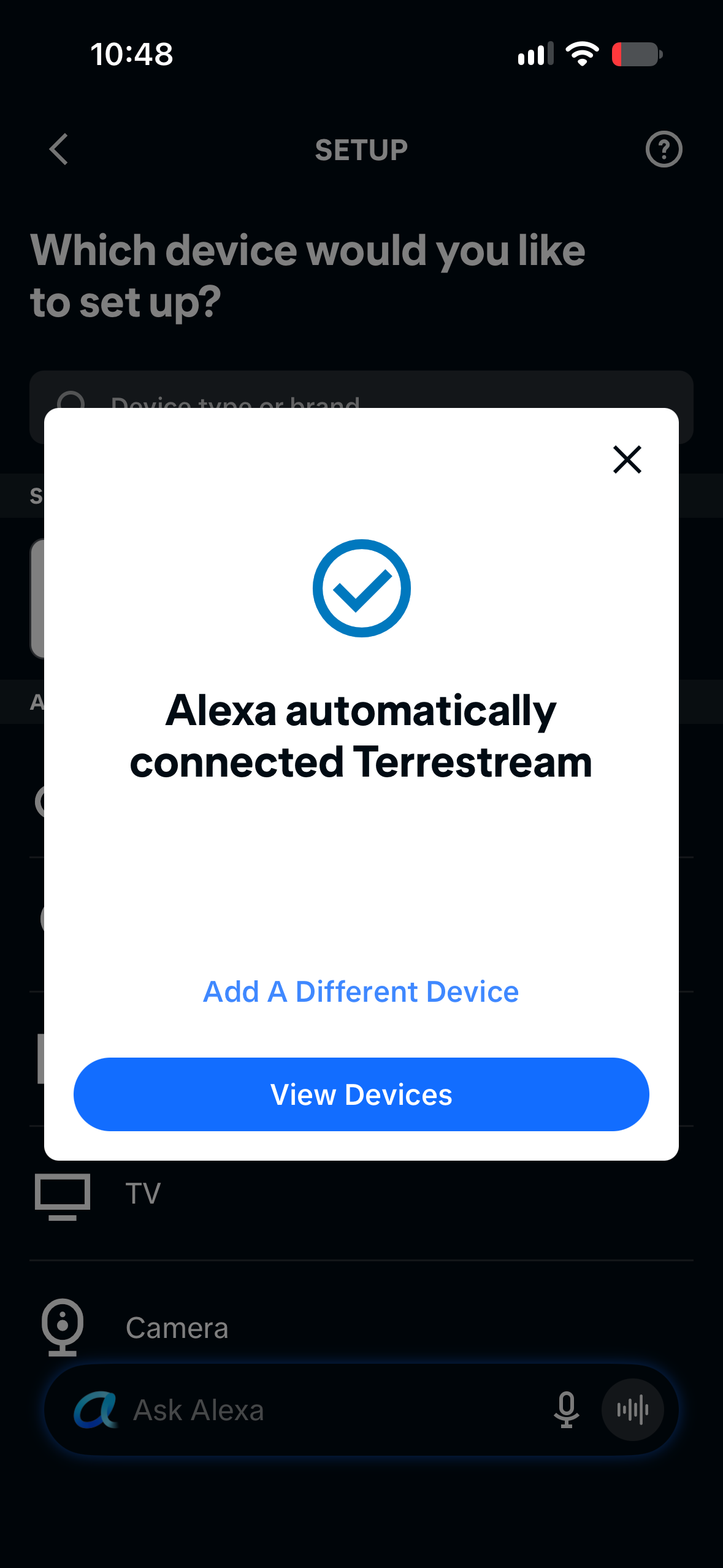
Alexa may show a certification notice for this community bridge during pairing.
Step 7 · Alexa
Ask Alexa
Once Terrestream is assigned to a room in Alexa, ask about that room. Replace office below with kitchen, bedroom or the room name you chose.
“Alexa, what is the temperature in the office?”
“Alexa, what is the air quality in the office?”
“Alexa, what is the PM2.5 level in the office?”
Alexa can display readings it cannot answer by voice or use in routines. Use Home Assistant or the Terrestream app for all 12 measurements.
| Reading | Home Assistant | Alexa app | Alexa voice |
|---|---|---|---|
| Air-quality category | Via helper | Shown | Confirmed |
| PM2.5 | Yes | Shown | Confirmed |
| Temperature | Yes | Shown | Confirmed |
| Humidity | Yes | Shown | Not supported by Alexa |
| CO₂ | Yes | Not supported by Alexa | Not supported by Alexa |
| PM1, PM4, PM10, VOC index, NOx index, pressure, ambient light, numeric AQI | Yes | Not supported by Alexa | Not supported by Alexa |
Readings in the Alexa app
Select an image to enlarge.
Step 8 · Routines & automations
Create automations
Use Alexa routines for the triggers Alexa offers. Use Home Assistant automations to work with any of Terrestream’s 12 measurements.
Alexa: turn on an air filter
Connect an Alexa-compatible air filter to Alexa, then open More → Routines → +.
- Choose the trigger. Tap Add an event → Smart Home → Terrestream → Air quality. Select Poor, then tap Next.
- Set the action. Tap Add an action → Smart Home, select your air filter and choose On.
- Save and test. Name and save the routine, enable it, then tap its play button to check that the air filter turns on.
Select an image to enlarge.
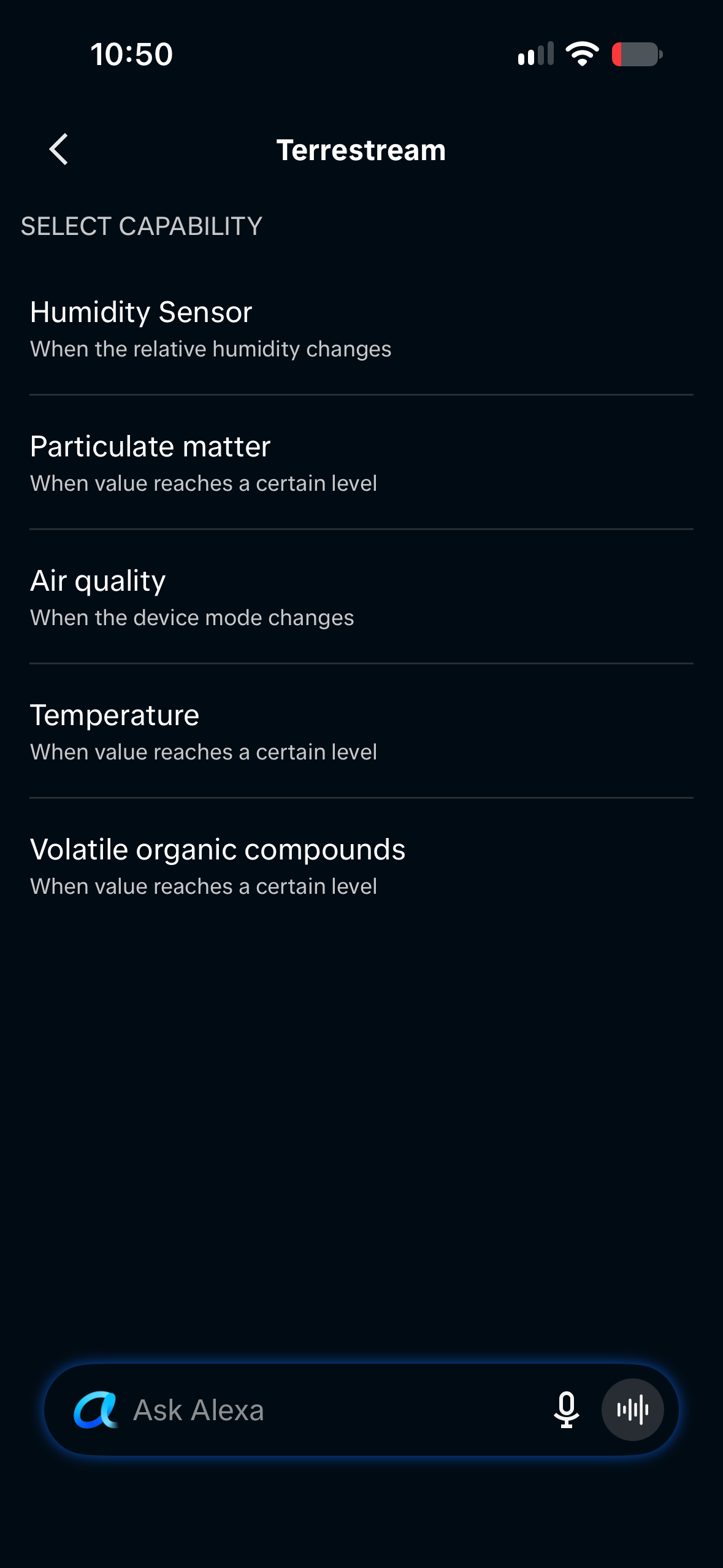
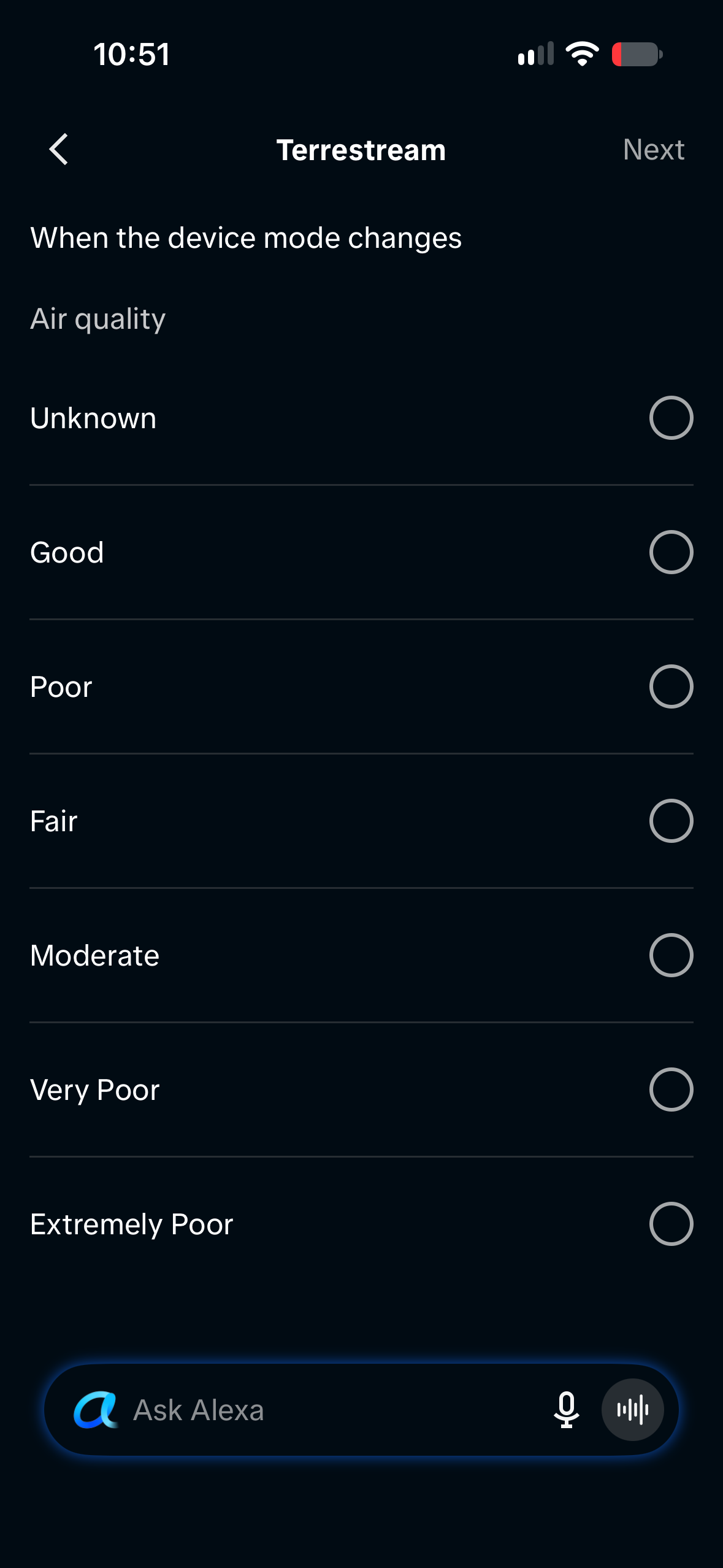
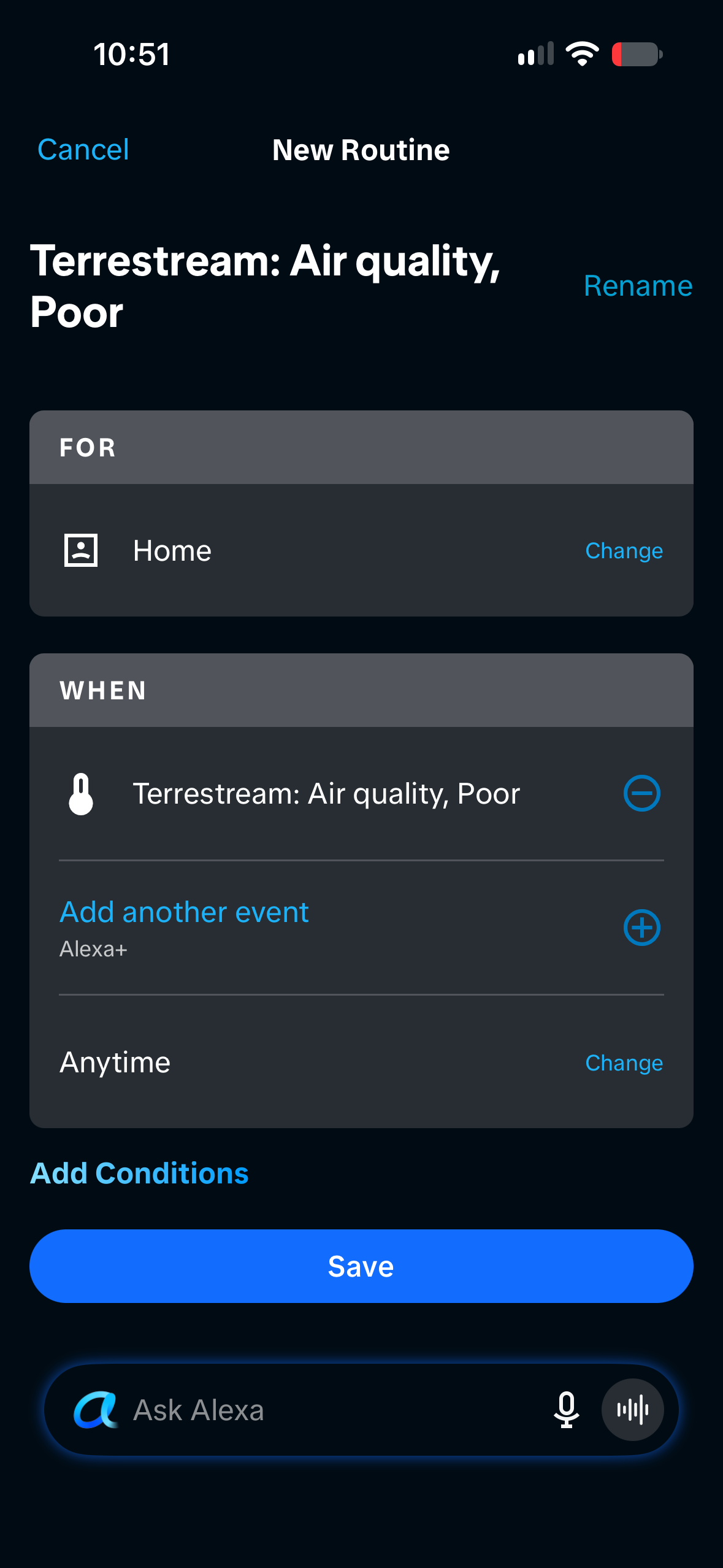
Finish Terrestream’s setup and assign a room. If Alexa still does not list the reading, use Home Assistant below.
Home Assistant: send a PM2.5 notification
Get a notification when PM2.5 stays above your chosen limit for five minutes. Start in Settings → Automations & scenes → Create automation → Create new automation.
- Choose the trigger. Under When → Add trigger, choose Numeric state crossed threshold. Select Terrestream’s PM2.5, enter your Above limit and set For at least to five minutes.
- Add the notification. Under Then do → Add action, choose Persistent Notification → Create persistent notification and enter your message.
- Save and test. Save and enable the automation, then run its action to check the notification.
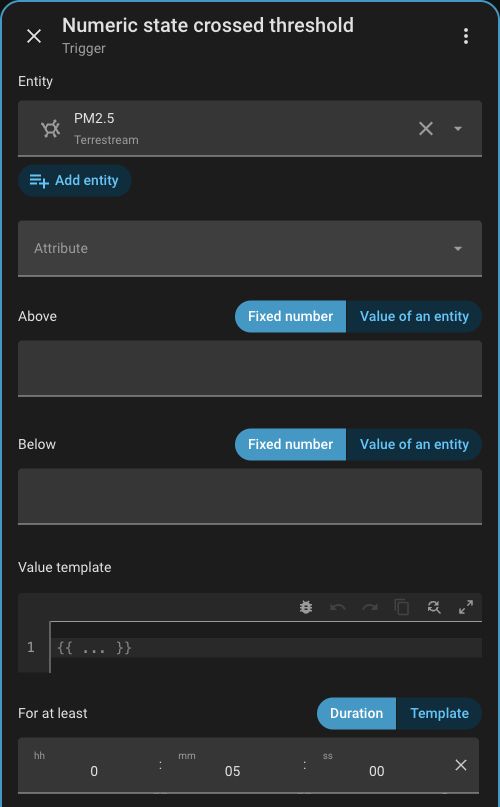
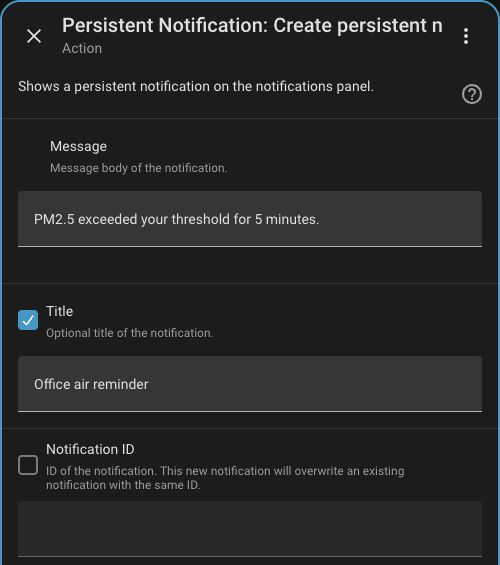
The notification runs once per threshold crossing. Restarting Home Assistant or reloading automations resets the five-minute wait.
To control a fan or purifier, replace the notification with that device’s action. Use a lower switch-off threshold to prevent frequent cycling.
Help
Troubleshooting
Terrestream Local is missing
In HACS, check that you downloaded the Integration from terrestream/terrestream. Restart Home Assistant, refresh the browser, then search for Terrestream Local.
Pairing code rejected
On Terrestream, open Setup → Home Assistant → Pair for a new eight-digit code. Enter it within two minutes, including leading zeros. The six-digit Bluetooth code will not work here.
Alexa cannot find Matterbridge
Check that readings update in Home Assistant and Matterbridge, then reopen Matterbridge’s pairing screen. Use its QR code. Check the LAN adapter, IPv6/multicast access and port 5540. On iPhone, allow Alexa to use the local network and camera.
Alexa shows Matter Hub but setup is incomplete
Open Devices → Terrestream → Finish Setting it Up and assign a room. If Terrestream is missing, check the plugin’s Whitelist and Matterbridge’s Devices page.
Alexa answers about the wrong device
Use Terrestream’s exact Alexa name in your question. For measurements Alexa does not support, use Home Assistant or the Terrestream app.
Readings stopped updating
Check readings on the sensor, then in Home Assistant, Matterbridge and Alexa. Keep the host powered on and awake. After a firmware update, allow time for reconnection.
The Terrestream app stopped receiving readings
On the sensor, set Cloud data sharing → Cloud enabled. Local-only mode stops updates to the Terrestream app and web dashboard.
An automation works manually but never triggers
Check the sensor, units, threshold, schedule and duration. For Home Assistant, check Traces after a threshold crossing. For Alexa, check that the reading is listed as a routine trigger.
Contact support
Tell us which step failed, your software versions and Echo model. For voice issues, include your exact question and Alexa’s reply. Do not send tokens or pairing codes.
Contact Terrestream support →