

Guide en anglais
Learn / Getting started
Set up your Terrestream.
First, power it on.
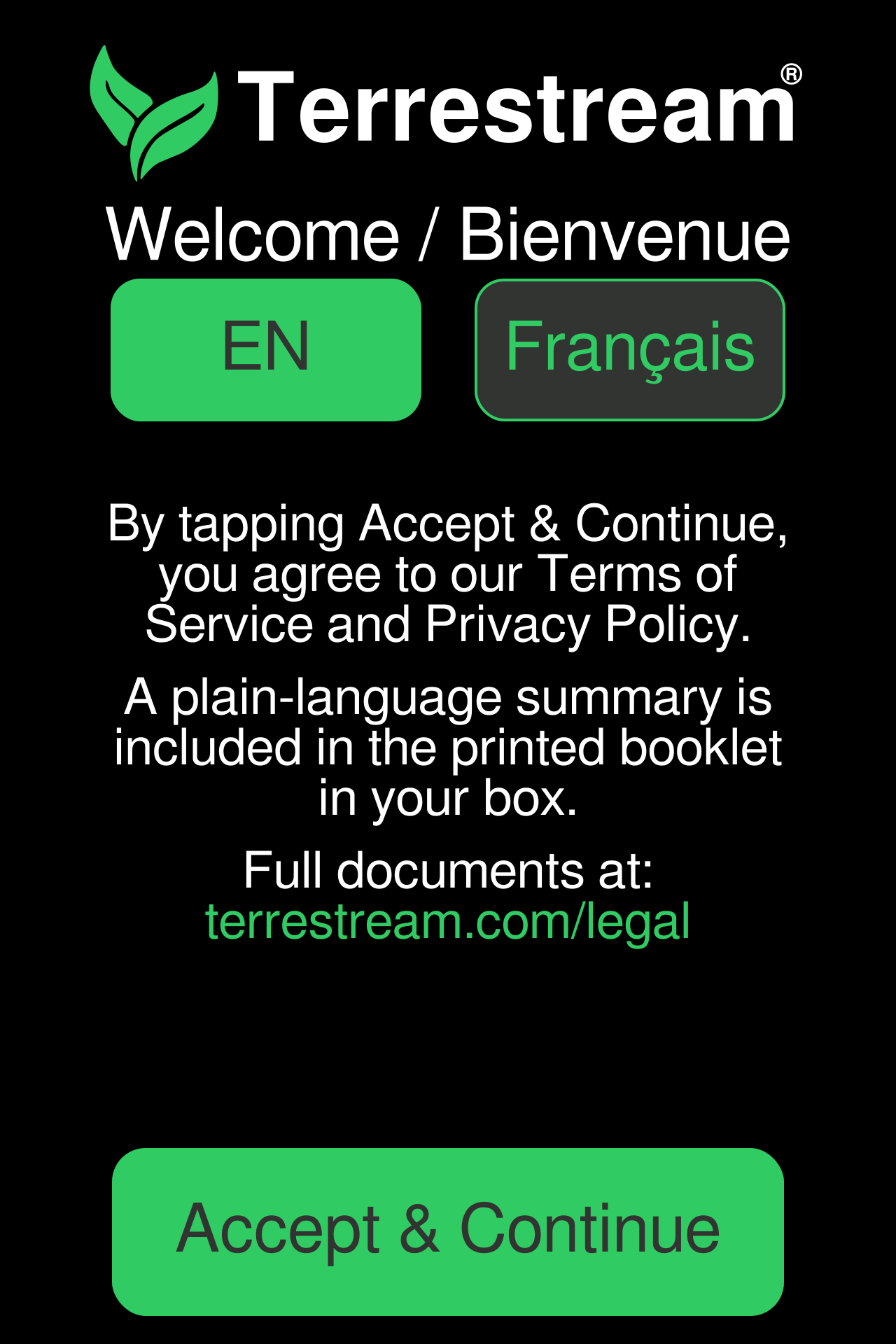
Use the supplied USB-C cable and adapter. Choose a language, review the terms, then tap Accept & Continue.
See the welcome screen
Have your 2.4 GHz Wi-Fi password ready and Bluetooth on. Setup uses a free account and an internet connection.
Set up with your phone.
Pair over Bluetooth, then follow the app to connect Wi-Fi. Keep your sensor nearby.


-
Choose app setup on the device
On your sensor, open Setup & Connect and choose Set up with the app. Leave the Pairing screen open.
This button pairs a phone or computer. Set up with a browser is the separate Wi-Fi-only method; it does not link an account.
See the setup screen
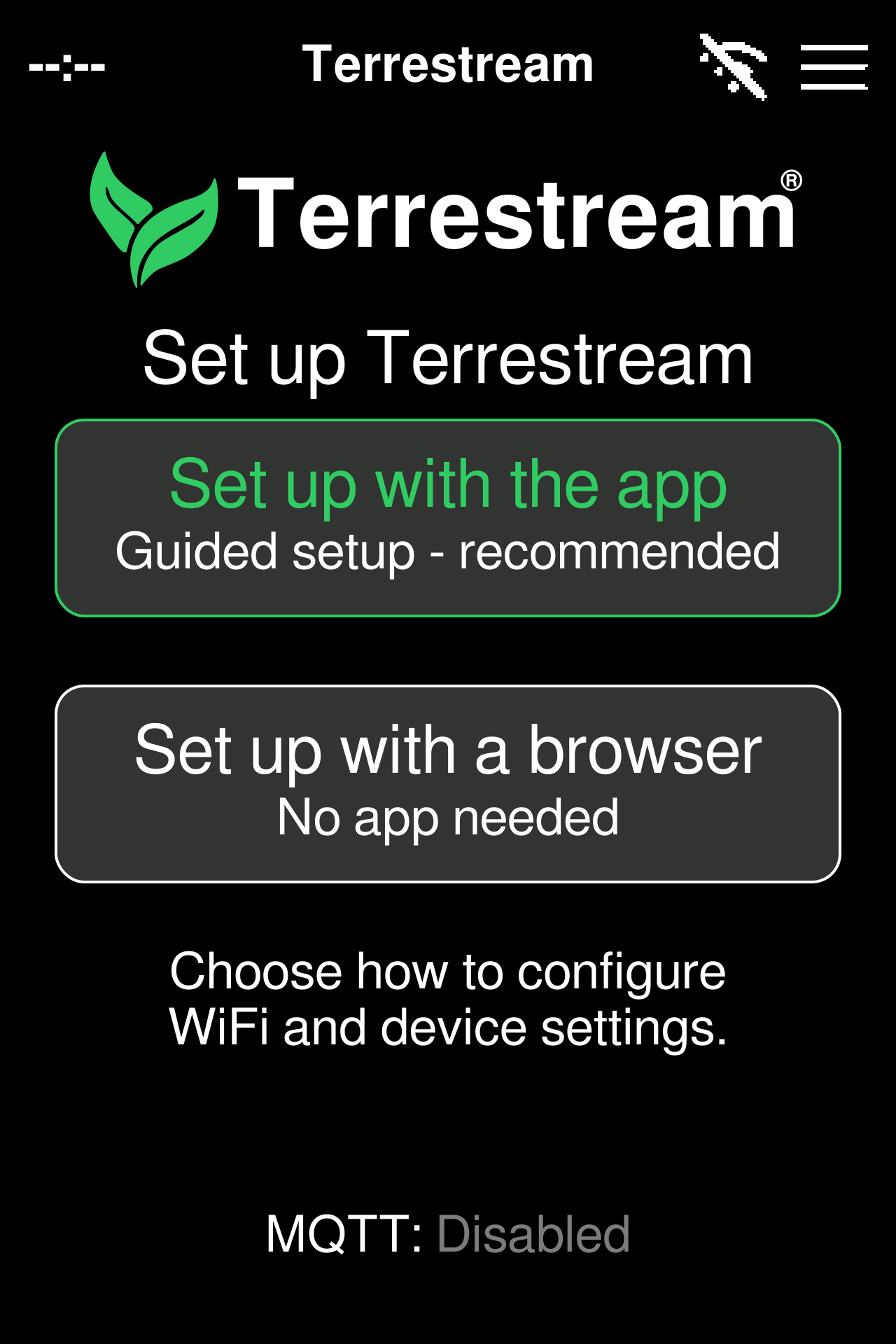
Use the labels shown on your device. Firmware 4.0.72 illustrated. -
Open the app and add your device
Open Terrestream, sign in or create an account, then choose Add device. Allow Bluetooth access when asked.
Can’t find your sensor?
Allow Bluetooth access for Terrestream in your phone settings. Keep the sensor nearby on its Pairing screen.
Get help with app setup → -
Pair, then connect to Wi-Fi
Select your Terrestream. If prompted, enter the current six-digit code on its screen. Follow the app to choose your 2.4 GHz home Wi-Fi and enter its password.
See the pairing screen
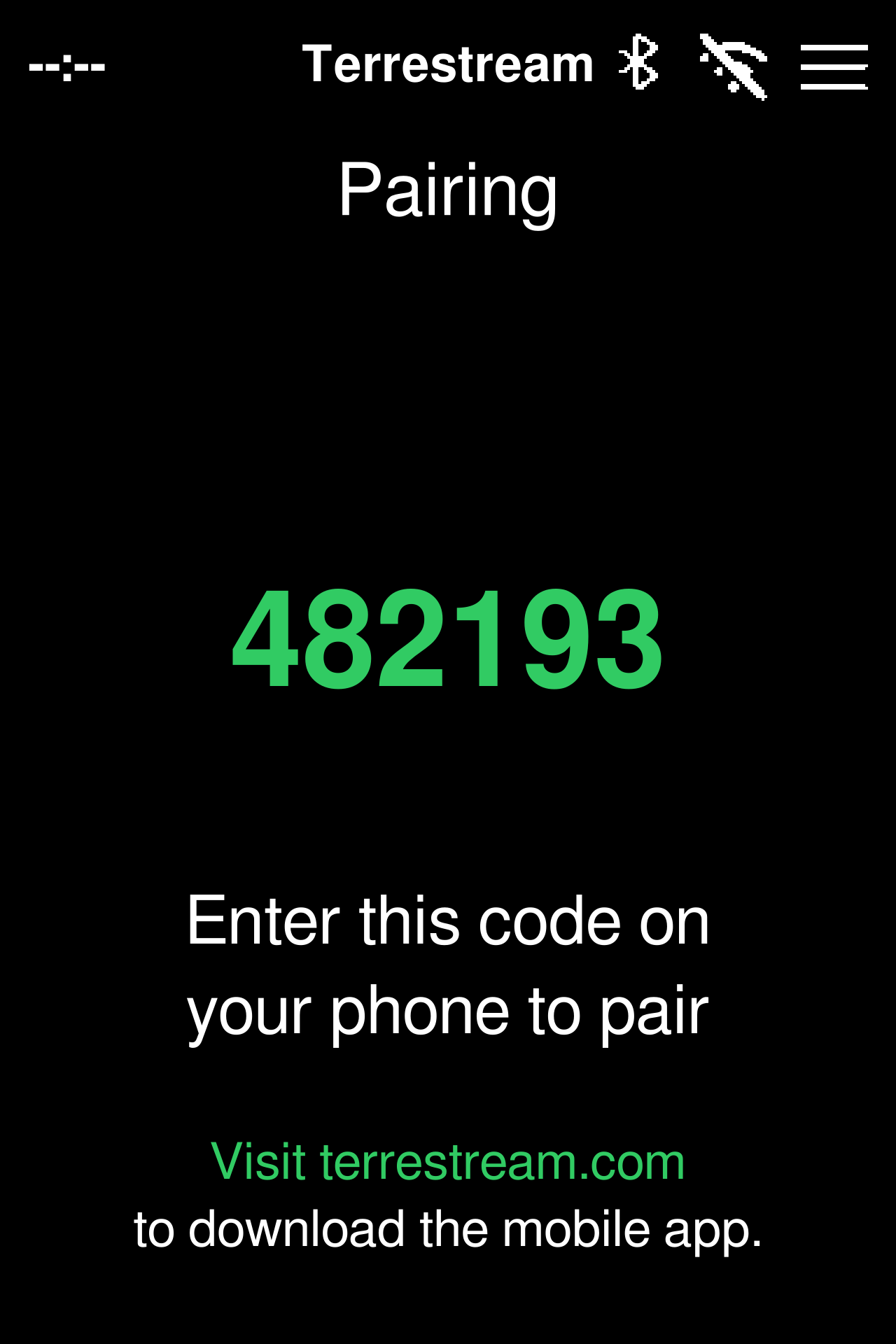
482193 is an example. Use the six-digit code shown on your own device.
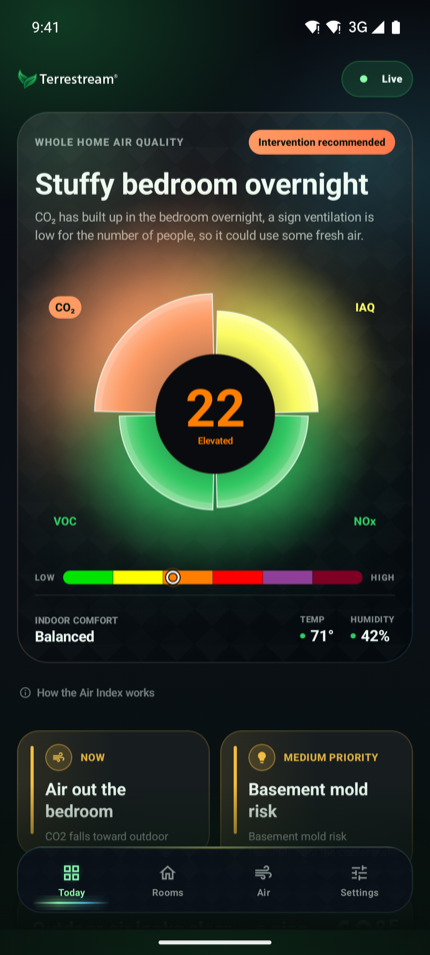
Check your sensor appears in the app.
Finish the guided setup, then look for your Terrestream in the app. Use the same account at app.terrestream.com to see it on the web.
See an example in the app
Set up with your computer.
Use Chrome or Edge on a computer with Bluetooth. No app download is needed.
-
Choose “Set up with the app”
On your sensor, open Setup & Connect and choose Set up with the app.
Use this button for computer setup too: it enables Bluetooth pairing. Set up with a browser opens the separate Wi-Fi-only portal and does not complete account setup.
See the setup screen
Use the labels shown on your device. Firmware 4.0.72 illustrated. -
Sign in and find your device
Sign in to the web dashboard or create an account. Choose Add device, then Find my device, and select your Terrestream in the Bluetooth window.
Can’t find your sensor?
Use Chrome or Edge on a Bluetooth-equipped computer. Turn Bluetooth on, allow the browser access, and keep the sensor nearby on its Pairing screen. If the mobile app is connected, disconnect it first. Safari, Firefox and Brave are not supported for this setup; you can use your usual browser to view the dashboard afterward.
Get help with computer setup → -
Pair and connect to your Wi-Fi
If asked, enter the six-digit code on your Terrestream. Follow the dashboard to choose your 2.4 GHz home Wi-Fi and enter its password.
The sensor says “your phone.” Enter the code on your computer for this setup.
See the pairing screen
482193 is an example. Use the six-digit code shown on your own device.
Check your sensor appears in the dashboard.
Finish the setup flow, then look for your Terrestream in your signed-in account. You can now view the dashboard in your usual browser, or use the same account in the app.
See an example dashboard
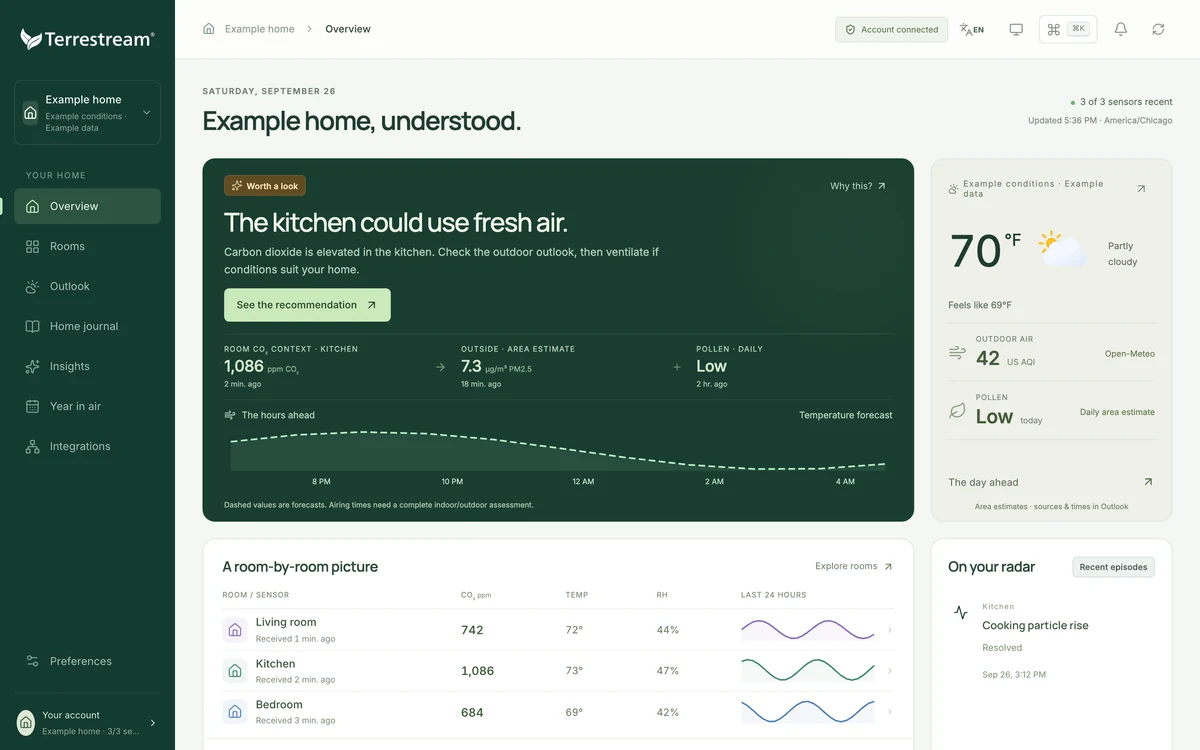
Use the sensor on its own.
No account, phone or internet connection is needed.
The screen keeps working without internet. App notifications, history, outdoor context and recommendations need Wi-Fi, internet and a free account.
-
Leave the setup screen
After accepting the terms, tap the menu icon in the top-right corner of the setup screen.
See the setup screen
Use the labels shown on your device. Firmware 4.0.72 illustrated. -
Open your readings
Tap the menu icon again to leave the menu and open the CO₂ screen. Leave the sensor powered on while the readings start.
See the menu
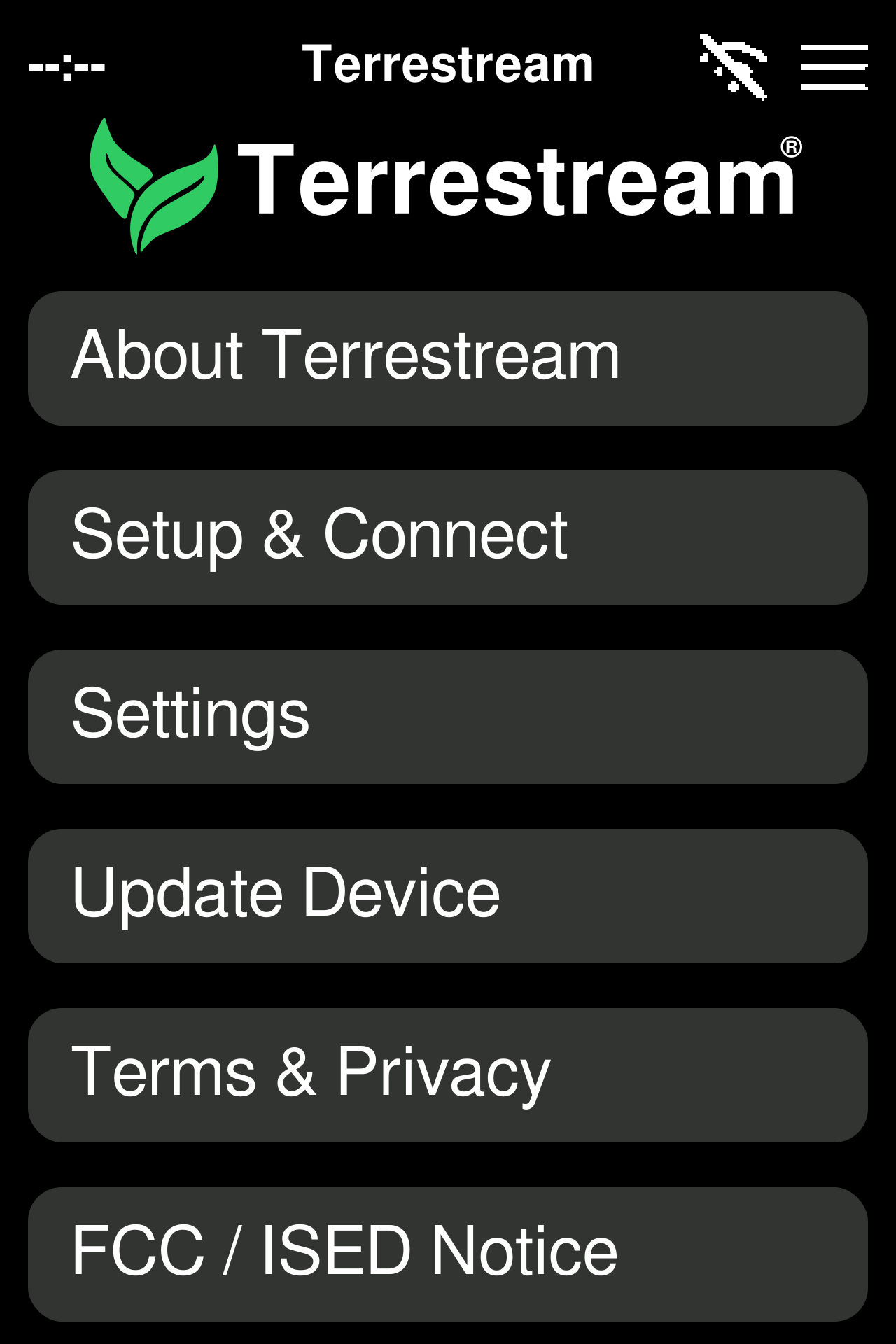
Tap the top-right menu icon again to return to the CO₂ screen.
Look for the readings screen.
You can use the sensor here without completing any account setup. Wi-Fi is optional; add it below if you want the clock to set itself. You can return to Setup & Connect whenever you want to add app or dashboard access.
Optional: add Wi-Fi for the clock
Connect Wi-Fi for the clock.
This optional connection synchronizes the time over the internet. It does not link the sensor to an account.
-
Choose “Set up with a browser”
Open Setup & Connect and choose Set up with a browser. This starts the sensor’s temporary Wi-Fi network.
Use Set up with the app instead when you want Bluetooth pairing and app or dashboard account access.
See the setup screen
Use the labels shown on your device. Firmware 4.0.72 illustrated. -
Join the device’s Wi-Fi network
On a phone or computer, join the Terrestream-… Wi-Fi network named on the sensor. Stay connected if your phone warns that it has no internet.
See the Wi-Fi screen
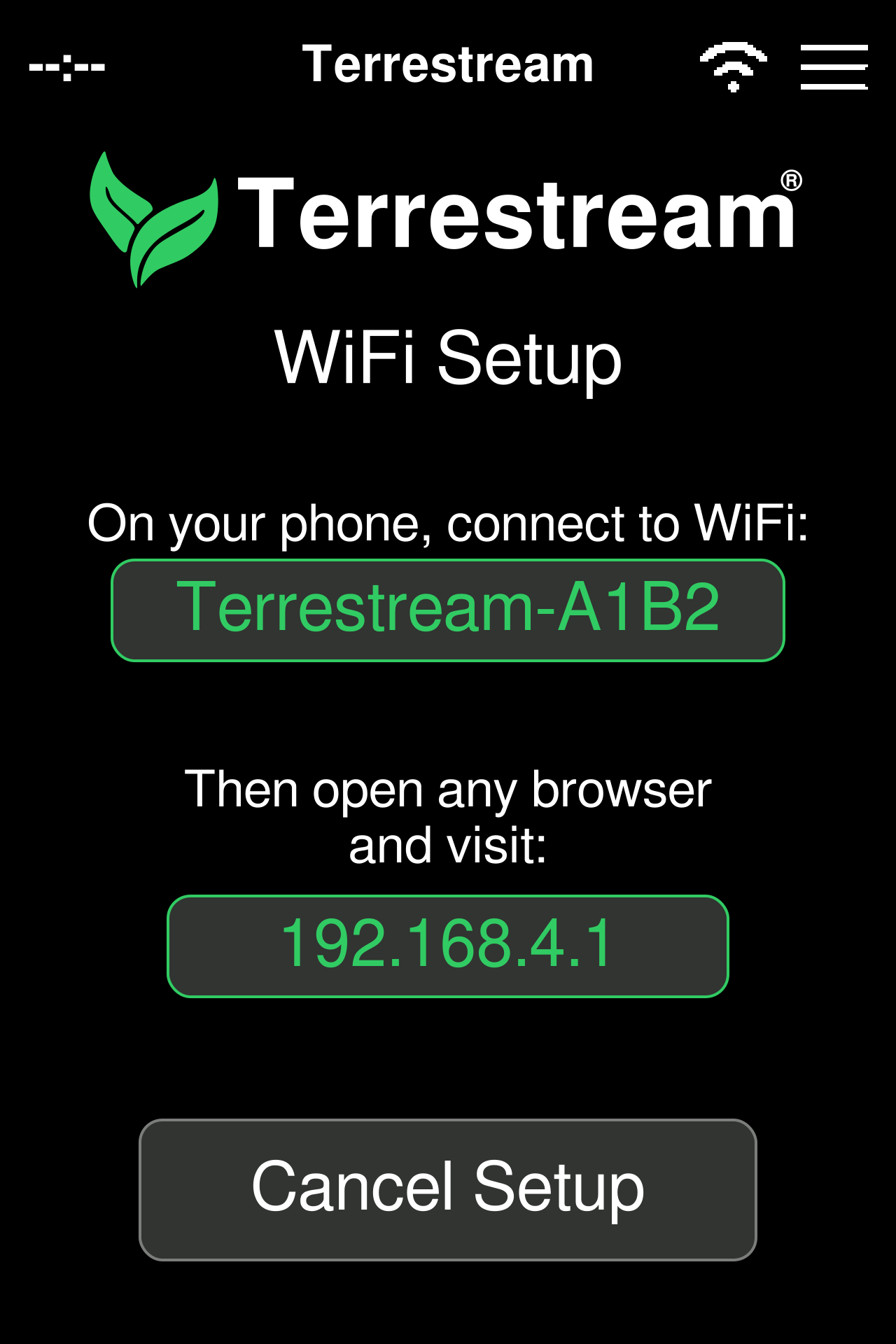
Join the network named on your own screen. Its letters and numbers vary by device. -
Open the local setup page
Open any browser and enter 192.168.4.1 in the address bar. Choose your 2.4 GHz home Wi-Fi and enter its password.
Check the clock after connecting.
Once Wi-Fi connects and internet time synchronization succeeds, the clock can show the time. Keep reading air quality on the device; this Wi-Fi setup does not add it to an online account.
Place it, then let it settle.
Keep the air openings clear, away from direct sunlight, splashes and airflow from a vent. Leave the sensor powered on as the first readings arrive. Screen colors describe air quality, not setup progress.
What to expect during the first days →